The most reliable path: a picture first, then its animation. You control the look and spend less on trials.
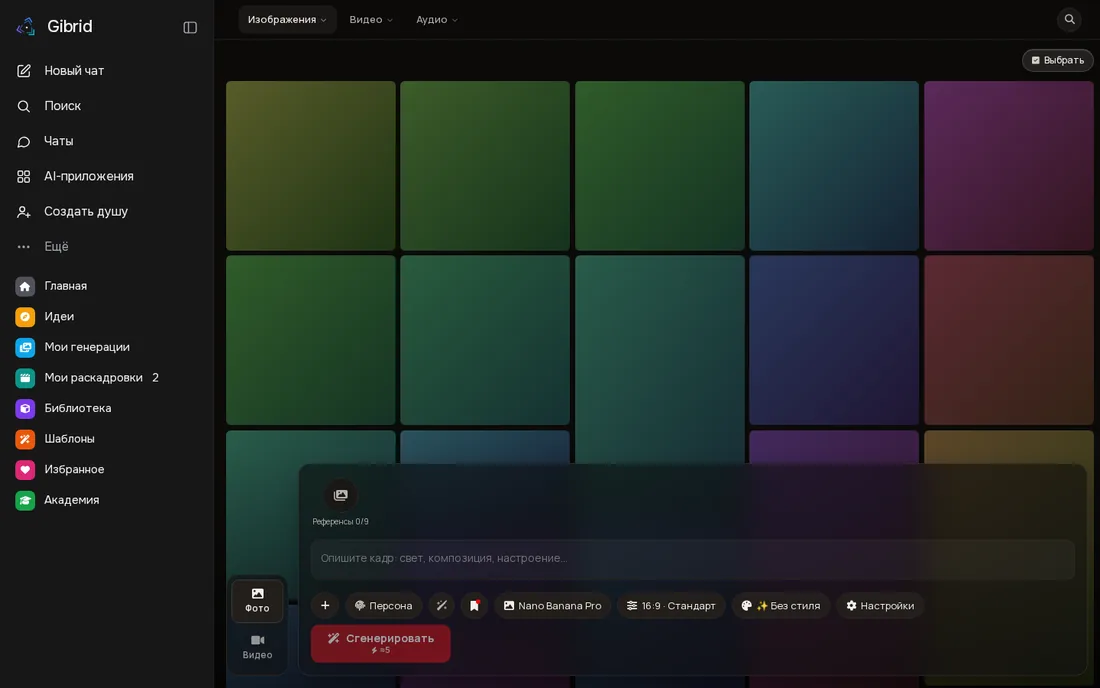
Open gibrid.ai/studio and sign in. At the bottom-left of the workspace there is a Photo / Video switch. Choose Photo first: a finished frame is the best start for a video, and it is cheap to redo.
In the field at the bottom write a sentence or two: who, where, what light. For example: “a ginger cat on a windowsill, rain outside, soft evening light”. Model and format are in the row above the field. The price (⚡) is on the Generate button before you press it.
Press Video. Round slots appear above the input: Start frame, “End frame”, “Motion video” (the set depends on the model). Press Start frame and add your picture (from My generations or from your device).
The look is already in the frame, so the prompt is about motion: “the cat turns its head to the window, the camera slowly pushes in, raindrops run down the glass”. The magic-wand button next to the field can polish the wording.
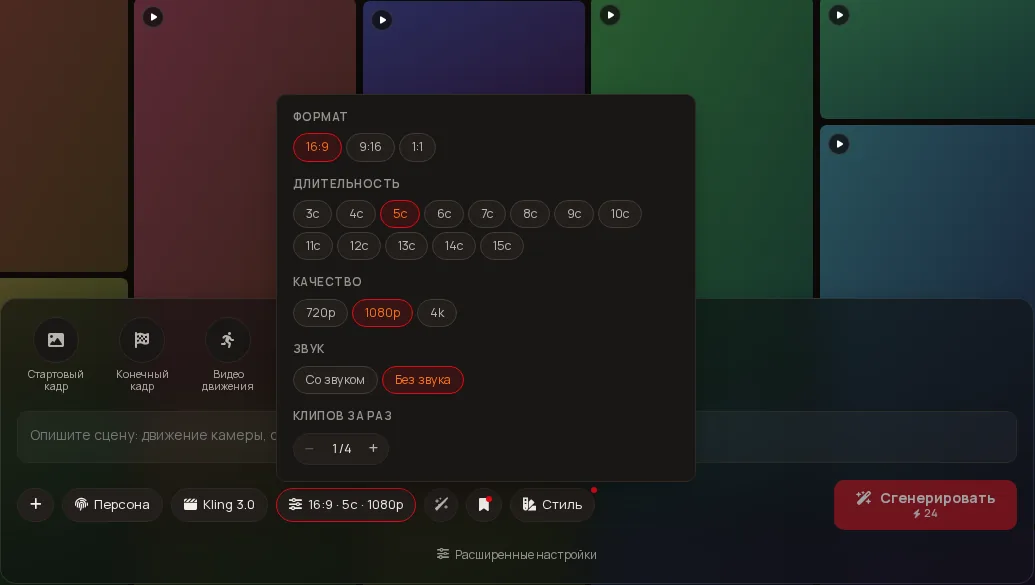
For a first try take a short clip (5 seconds) and not the highest resolution. Press the model name — every model in the list shows its price per second (⚡/s). Press “16:9 · 5s · 1080p” to change format, duration, quality and sound. The total updates on the button.
The clip usually appears in the feed in 1–3 minutes (longer for heavy models). You can close the tab — the work runs on the server. Finished items always live in My generations. Like it? Press the heart and it goes to Favorites.
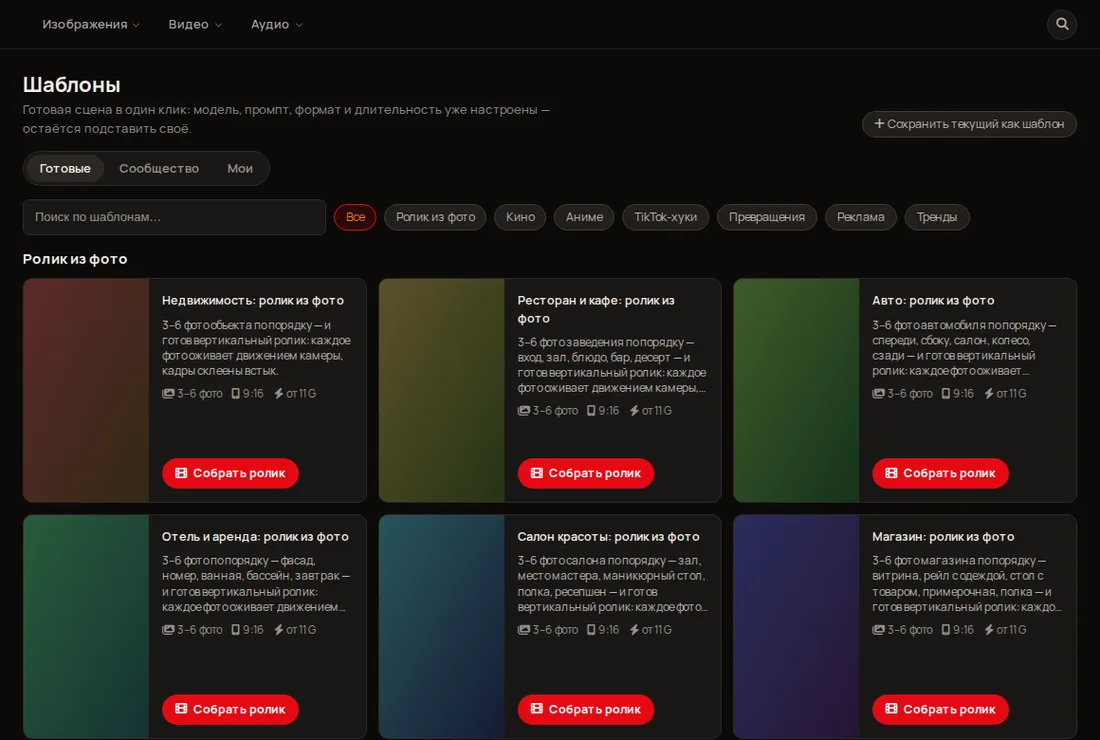
Open Templates in the left menu: ready scenes with model, format and duration already set. Press Make the reel on one you like — then just add your own text or photos.
The exact price is on the Generate button before launch. 1⚡ is about $0.025. A picture usually costs a few ⚡; video depends on model, seconds, resolution and sound.
Use the default (currently Kling 3.0 for video) and 5 seconds. Once comfortable, open the model courses to see how they differ.
