 GIBRID.AISchool
What to do with a finished track
Under the player of every finished track in “Music” there is a row of buttons: download in high quality, extend, rewrite a part, separate the vocals from the music, get lyrics with timestamps. All of them show the price in ⚡ before you click. The same tools work with your own file on the “From audio” tab.
- MP3 downloads for free right away; WAV costs ⚡1, an MP4 video with cover art costs ⚡1; the “In video” button sends the track to “Editing” as music.
- “Extend”, “Cover”, “New music” and “Sing over it (new vocals)” cost ⚡4 each, “Replace a section” ⚡2, “Tracks” ⚡4 (vocals and backing) or ⚡14 (all instruments), “Timestamped lyrics” ⚡1.
- The “From audio” tab accepts your file (MP3, WAV, M4A; up to 8 minutes for cover and extend) or any track from “My tracks”; modes: Cover, Extend, Add vocals, Add music, Mashup.
- “Save the voice for new songs” turns a track’s voice into a “Saved voice” for the next songs, for free.
- Tracks made by an older Suno version support not all buttons: the screen says “The track was made with an older Suno version — this operation isn't available for it”.
1The finished-track card
A finished track opens as a card: the cover and title on the left, the numbers 1 and 2 for the two versions on the right, and a player with a waveform below. The first row of buttons has MP3, WAV, In video and the More menu; under it comes a row of actions with prices.
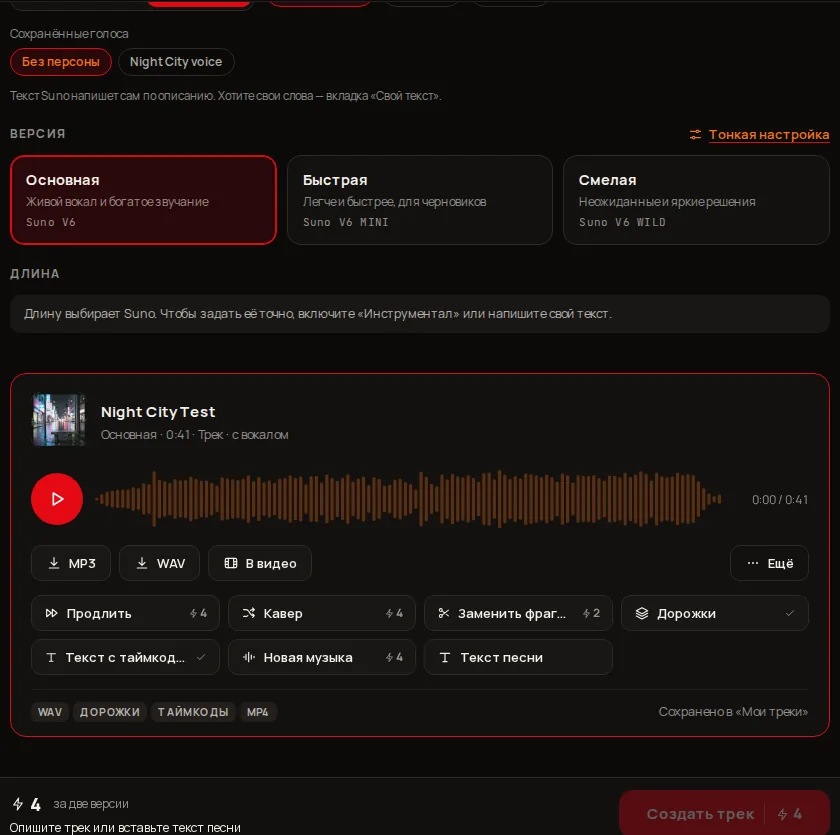
| Button | What it does | Price |
|---|---|---|
| MP3 | Download as is | free |
| WAV | Download lossless, for mixing and editing. The first time it creates the file, afterwards it is an ordinary download button | ⚡1 once |
| In video | Send the track to “Editing” as music | free |
| More → MP4 video with cover art | Creates a video with the cover art and downloads it; afterwards the button reads “MP4 video — download” | ⚡1 once |
| Extend | Continue the track in the same spirit | ⚡4 |
| Cover | The same melody in a new style | ⚡4 |
| Replace a section | Rewrite a part, leave the rest alone | ⚡2 |
| Split vocals / Tracks | Vocals and backing as separate tracks (or all instruments) | ⚡4 / ⚡14 |
| Timestamped lyrics | Lyrics with exact times: LRC and SRT | ⚡1 |
| New music | A new accompaniment for this voice | ⚡4 |
| More → Sing over it (new vocals) | New vocals over the track’s music | ⚡4 |
| More → Save the voice for new songs | The track’s voice becomes a “Saved voice” | free |
| Lyrics | Show and hide the words (the button appears if the track has lyrics) | free |
2In video and MP4
- In video — puts the track into “Editing” as music (message “Track added to «Editing» as music”) and opens that Studio mode. Free.
- MP4 video with cover art — in the More menu. The server builds a video from the track and its cover (⚡1) and downloads the MP4 at once. Next time the item is called MP4 video — download.
3Extend, cover, new music, new vocals
These four buttons on the card open Create → From audio with the track already chosen and the right mode set (message “Track picked as the source — adjust and press the button below”). You only set the details and press the button at the bottom.
- Extend (⚡4)
Suno continues the track from its end in the same spirit. You may enter “Lyrics (optional)”, choose the vocals and change the title.
- Cover (⚡4)
The same melody in a new style: choose a style with chips or in your own words. The field “New lyrics (empty — sings the original words)” lets you sing different words. The button at the bottom is called “Make cover”.
- New music (⚡4)
A new accompaniment for your voice or melody: describe the genre and instruments. There is no “Voice” block in this mode.
- Sing over it (new vocals) (⚡4)
Suno sings over the track’s music. The field “Lyrics for the vocals (empty — Suno writes its own)” can stay empty; the voice gender is chosen in the “Voice” block.
4Replace a section (⚡2)
- Click “Replace a section”
A window opens with the caption “The rest of the track won't change” and the track’s waveform.
- Mark the part
The Start and End sliders. The section is at least 10 seconds and at most half the track (“Section: N s · from 10 seconds to half the track”). If the track is shorter than 20 seconds, the window says a section can't be replaced.
- Describe what it should sound like
The field “What it should sound like” (for example “a powerful chorus with drums, a guitar solo”). For tracks with vocals there is also “New words for the section (optional)”.
- Click “Replace”
The ⚡2 price is on the button. The new version appears as a separate track marked “Section replacement”.
5Tracks: vocals and backing
- Click “Split vocals”
The “Tracks” window opens with two options: Vocals and backing (two tracks: the voice separately, the music separately, ⚡4) or All instruments (up to 12 tracks: drums, bass, guitars, keys…, ⚡14).
- Click “Split”
Usually under a minute (“Splitting… usually under a minute”). The price is on the button.
- Listen and download
Every track (Vocals, Instrumental or an instrument) has ▶ and a Download button (mp3). The finished tracks stay with the track, and the card button is now called “Tracks”.
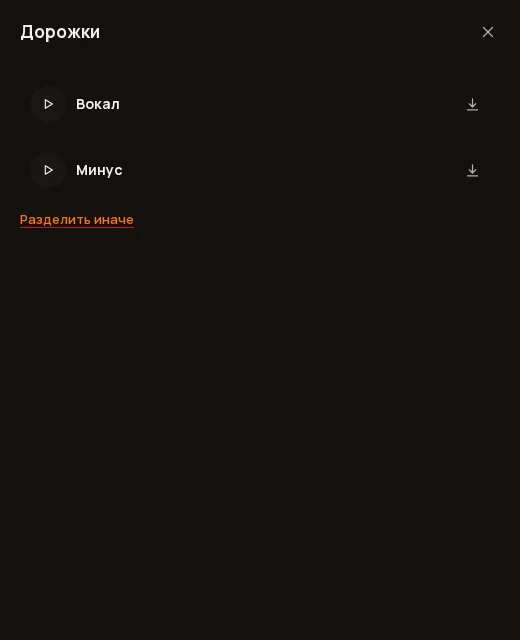
The Split differently link takes you back to the choice: pick the other option and click “Split”; the price is again on the button.
6Timestamped lyrics: LRC and SRT
- Click “Timestamped lyrics”
For an instrumental the button is unavailable (“No words in an instrumental”).
- Click “Get”
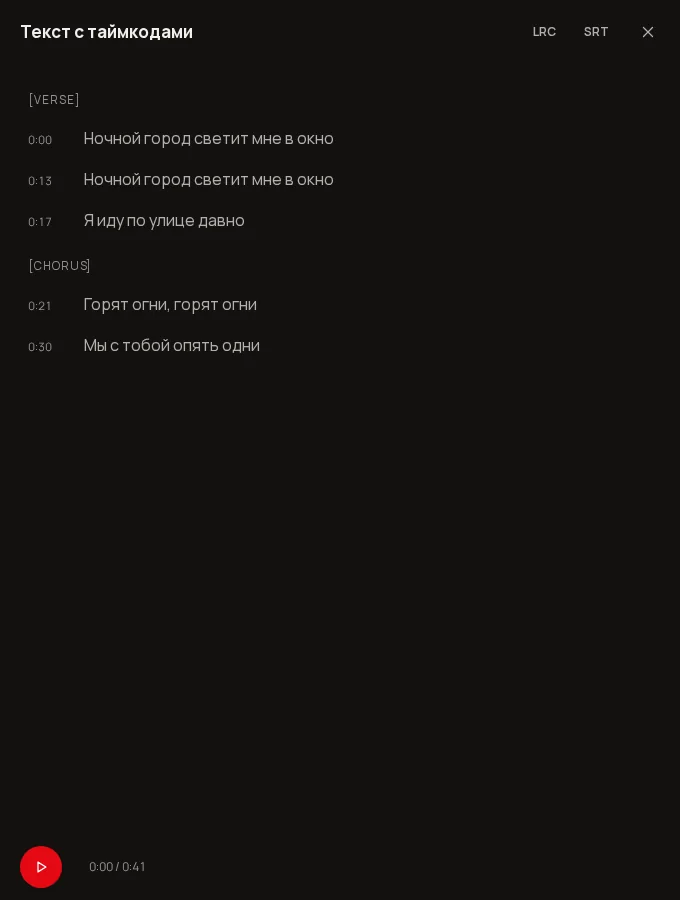
The price is ⚡1. Every line gets an exact start time.
- Use it
Lines light up with the music and a click on a line seeks the track. The LRC (for karaoke players) and SRT (subtitles) buttons in the window header download the files.
7Save the voice for new songs
The item Save the voice for new songs in the “More” menu (available for tracks with vocals, free) opens the “Save voice” window: enter a persona name (up to 60 characters) and click Save. The track’s voice and manner become a persona. After that a chip with this name appears in the “Saved voices” block of the “Create” tab, the item on the card turns into “Voice saved: …”, and the track gets a VOICE badge.
8The “From audio” tab: your file or a track
- Open Create → From audio
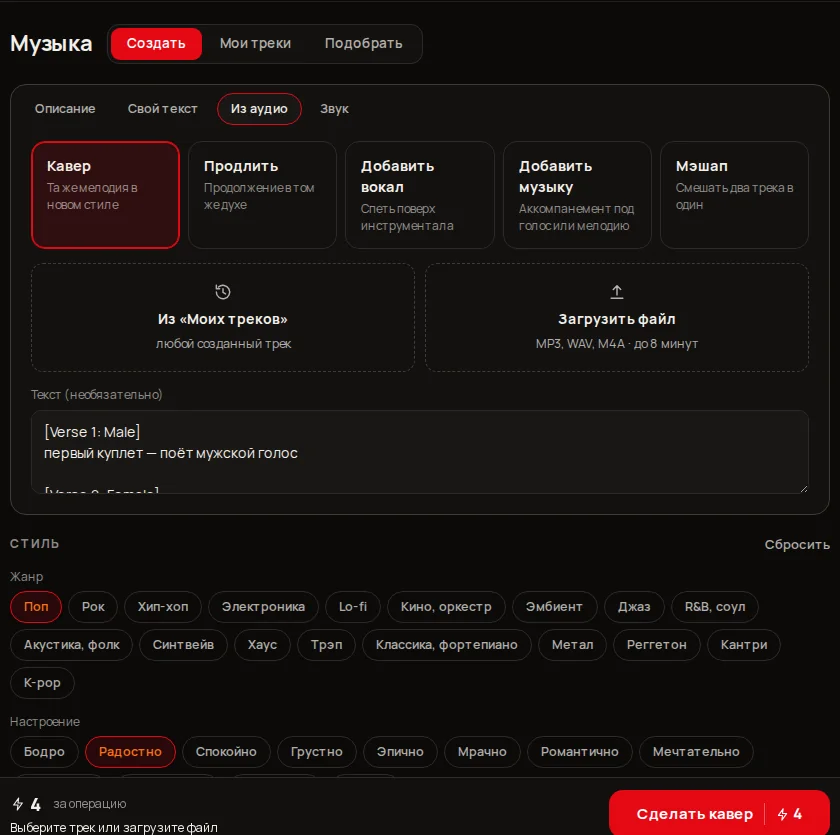
Five cards at the top: Cover (the same melody in a new style), Extend (continue in the same spirit), Add vocals (sing over an instrumental), Add music (accompaniment for a voice or a melody), Mashup (mix two tracks into one).
- Choose the source
The card “From «My tracks»” (“any track you made”) or “Upload file” (“MP3, WAV, M4A · up to 8 minutes”). For cover and extend the file must not be longer than 8 minutes, otherwise the screen says “The file is longer than 8 minutes — Suno won't accept it”. In “Mashup” there are two sources: “First track” and “Second track”.
- Set the style and lyrics
Cover, vocals, music and mashup need a style (chips or words), otherwise the screen says “Pick a style — with chips or in your own words”. Lyrics are optional: in “Cover” empty means “sings the original words”, in “Add vocals” it means “Suno writes its own”.
- Press the button at the bottom
It is named after the mode: “Make cover”, “Extend”, “Add vocals”, “Add music”, “Mix”. The price is ⚡4; version and fine-tuning work as when creating a track.
9Prices and limits
| Operation | ⚡ | Condition |
|---|---|---|
| Extend, cover, add vocals, add music, mashup | 4 | cover and extend of a file: up to 8 minutes |
| Replace a section | 2 | section 10 s to half the track; track at least 20 s |
| Tracks: vocals and backing | 4 | — |
| Tracks: all instruments | 14 | up to 12 tracks |
| WAV | 1 | once per version |
| MP4 video with cover art | 1 | once per version |
| Timestamped lyrics | 1 | not for an instrumental |
| Save the voice | 0 | tracks with vocals only |
?FAQ
How much does downloading a track cost?
MP3 is free. WAV is ⚡1 once (afterwards it is an ordinary download button), an MP4 video with cover art is ⚡1 once.
How does “Extend” differ from “Cover”?
“Extend” writes the track further in the same spirit, so it gets longer. “Cover” keeps the melody but dresses it in a new style. Both cost ⚡4.
How do I replace just the chorus?
Click “Replace a section” (⚡2), mark a stretch from 10 seconds to half the track with the sliders, describe what it should sound like and click “Replace”. The rest of the track does not change.
How do I get the backing track and a separate vocal?
Click “Split vocals”, choose “Vocals and backing” (⚡4), and in about a minute download two tracks. For drums, bass and other instruments separately, choose “All instruments” (⚡14, up to 12 tracks).
Which files does “From audio” accept?
The card says “MP3, WAV, M4A · up to 8 minutes”. For cover and extend a length over 8 minutes is rejected.
What are LRC and SRT?
LRC is lyrics with times for karaoke players, SRT is a subtitle file. Both download in the “Timestamped lyrics” window after the “Get” button (⚡1).
Why is a button grey and mentions an older Suno version?
The track was created before the new operations and lacks the needed Suno record. Create the track again or upload its file on the “From audio” tab.
Related
Music: create a song, an instrumental or a sound
The Music section makes tracks with Suno V6: you describe a song or paste your own lyrics, choose a style, a…
Read more →Voiceover: from words to a finished mp3
The “Voiceover” screen turns text into speech: you write or paste a text, choose a voice and a quality level…
Read more →Subtitles: the speech from your clip as text on screen
Many people watch clips without sound, and platforms and editors need files with text. The “Subtitles” window…
Read more →Billing, plans and balance: how it works
Gibrid has one balance for everything: chat, images, video, voice and agents. It is spent in ⚡ G-tokens, and…
Read more →