 GIBRID.AISchool
Music: create a song, an instrumental or a sound
The Music section makes tracks with Suno V6: you describe a song or paste your own lyrics, choose a style, a voice and a version — and about a minute later you get two versions of the track at once. Short sounds (steps, rain, a stadium roar) are created here too, and all your tracks are kept here.
- Open Studio → Audio → Music (gibrid.ai/provideo/music). Tabs at the top: Create, My tracks, Pick.
- Inside “Create” there are four sources: Description (up to 3,000 characters), My lyrics (up to 5,000), From audio and Sound (up to 500).
- Price: a track (two versions) is ⚡4, a sound is ⚡1, “Write lyrics” and “More detail” cost ⚡1 each. The price does not depend on the Suno version or the length.
- Versions: “Standard” (Suno V6), “Fast” (V6 Mini) and “Bold” (V6 Wild); voice: “Instrumental” or “With vocals”, female or male, or your saved voice.
- Every track is saved by itself in “My tracks” with search and playlists; if a task fails, the ⚡ are refunded.
1Where to find “Music”
- Open Studio
gibrid.ai/provideo, sign in to your account.
- Choose Audio → Music
In the top menu hover over Audio and choose Music (caption “Your own track or one picked for the scene”). The direct address is gibrid.ai/provideo/music.
- Choose a tab
Create — new tracks and sounds; My tracks — everything you have already made; Pick — ideas for ready-made songs for a scene (more below).
2Four ways to create music
In the “Create” tab there are four source buttons above the field:
| Source | What you enter | Text limit | Price |
|---|---|---|---|
| Description | In words: what the track is about and how it should feel. If the track has vocals, Suno writes the lyrics itself | 3,000 characters | ⚡4 for two versions |
| My lyrics | Finished lyrics with section tags; they are always sung | 5,000 characters | ⚡4 for two versions |
| From audio | Cover, extend, vocals, music, mashup from your file or track — see What to do with a finished track | text up to 5,000 characters; file up to 8 minutes | ⚡4 per operation |
| Sound | A sound description: rain on a tin roof, steps on gravel | 500 characters | ⚡1 |
3A track from a description
- Describe the track
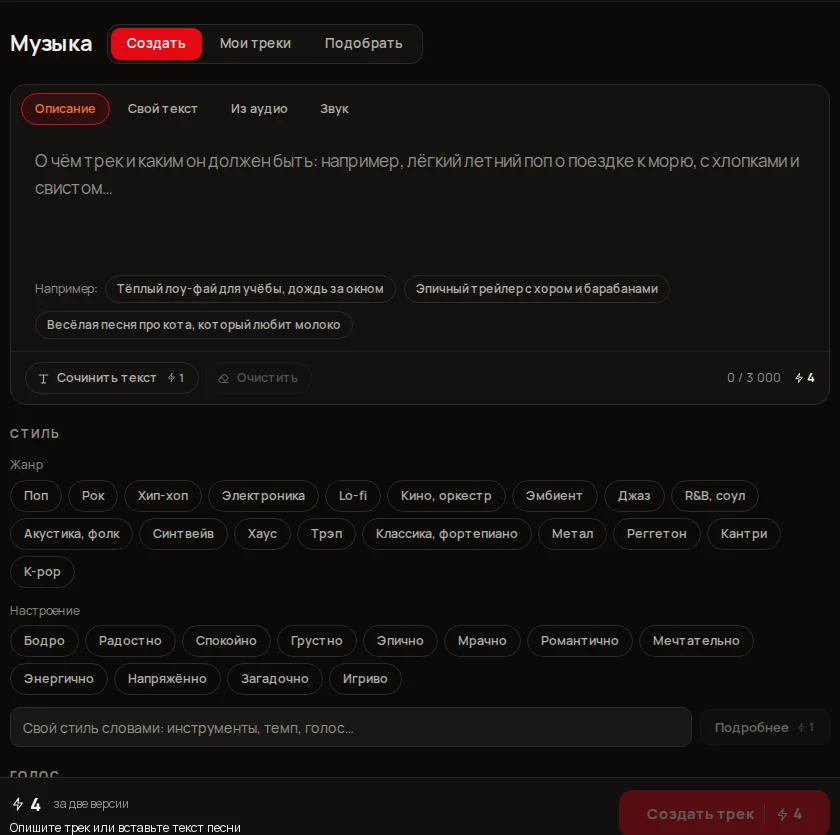
In the field “What the track is about and how it should feel…” write, for example, “warm lo-fi for studying, rain outside”. While the field is empty, three ready examples sit under it. The counter shows “characters / 3000” and the ⚡ price.
- Choose a style
In the “Style” block mark a genre and a mood with chips and/or type your own style in words (details below).
- Choose the voice and version
The “Voice” and “Version” blocks (below). If you only want an instrumental, switch on Instrumental.
- Click “Create track”
The button at the bottom shows the price, for example “Create track · 4” and the caption “for two versions”. Faster: Ctrl/⌘ + Enter.
4Style: genre, mood, your own words
- Genre (18 chips): Pop, Rock, Hip-hop, Electronic, Lo-fi, Cinematic and orchestra, Ambient, Jazz, R&B and soul, Acoustic and folk, Synthwave, House, Trap, Classical and piano, Metal, Reggaeton, Country, K-pop.
- Mood (12 chips): Upbeat, Happy, Calm, Sad, Epic, Dark, Romantic, Dreamy, Energetic, Tense, Mysterious, Playful.
- You can choose up to 12 chips. Next to them is a line “Your own style in words: instruments, tempo, voice…” for whatever the chips lack.
- The More detail button (⚡1) expands a short style into a detailed description for Suno; the result goes into the “Your own style” line and can be edited. Reset clears the style.
When you set the length of an instrumental, the style together with the description must not exceed 1,000 characters; otherwise the screen warns “Description and style together exceed 1000 characters”.
5Voice and Suno version
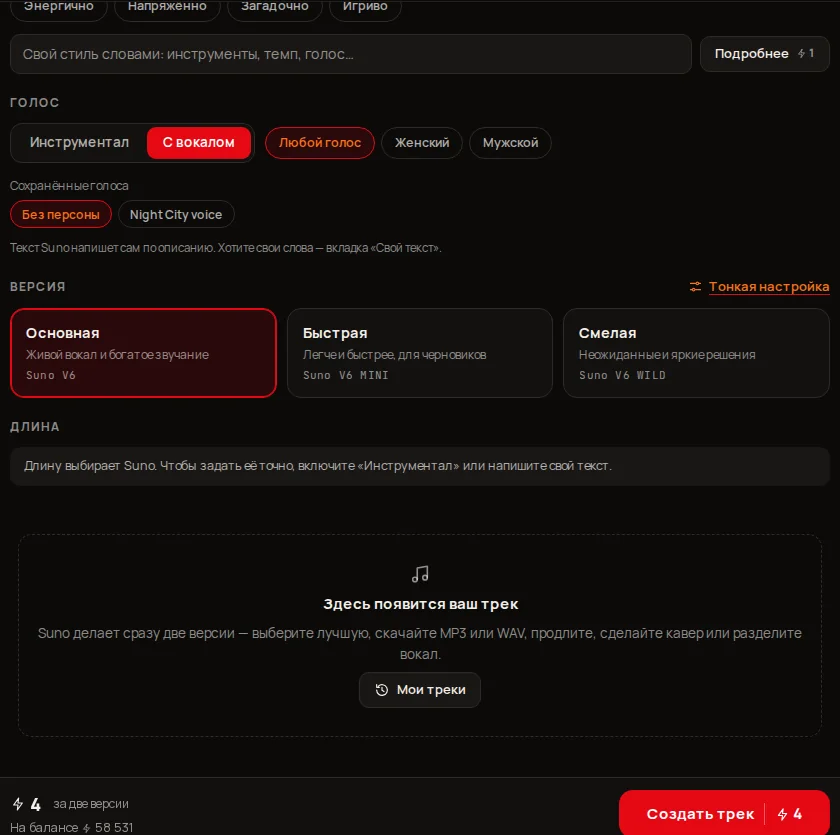
- Instrumental — music without words; With vocals — with singing. After “With vocals” choose Any voice, Female or Male.
- Saved voices — if you saved a voice from one of your tracks, it appears here as a chip. “No persona” returns the ordinary voice. How to save a voice is on the page What to do with a finished track.
- Version: Standard — Suno V6, live vocals and rich sound; Fast — Suno V6 Mini, lighter and quicker, for drafts; Bold — Suno V6 Wild, unexpected and vivid decisions.
6Track length
The “Length” block with an Auto switch and a slider appears in the “Description” and “My lyrics” tabs. You can set the length exactly only in two cases: you write your own lyrics (the “My lyrics” tab) or you switched on Instrumental. The range is 0:10 to 6:00 in 5-second steps. Otherwise Suno picks the length and the screen says “Suno picks the length”.
7Your own lyrics, section tags and duets
- Open “My lyrics”
Above the field you can enter a “Title (optional)” of up to 80 characters.
- Paste or write the lyrics
Up to 5,000 characters. Mark the parts in square brackets: [Verse], [Chorus], [Bridge], [Outro]. The counter shows, for example, 179 / 5000.
- Or take a template
The “Templates” buttons Verse — chorus, Duet, Call and response put a ready structure at the start of the text.
- Click “Create track”
The lyrics are sung in full; the style comes from the chips and your line.
![The My lyrics tab with tags [Verse 1: Male], [Chorus: Duet], template buttons and a character counter](/img/features/music-lyrics.webp)
- Who sings is written after a colon in the tag: [Verse 1: Male], [Verse 2: Female], [Chorus: Duet], [Outro: Duet]. For call and response: [Verse 1: Lead], [Response: Choir], [Chorus: Lead + Choir], [Outro: Choir].
- Write lyrics (⚡1) opens the “Write song lyrics” window: enter “What the song is about” (up to 200 characters) and click Write. You get 2–3 options: Use this one puts the chosen one into the field, More options gives new ones.
8Fine-tuning
The Fine-tuning link next to the “Version” block opens extra fields; a dot beside it means you changed something.
| Field | What it does | When available |
|---|---|---|
| What to avoid | A list of what must not be in the track, for example “heavy metal, autotune, children's choir”; up to 200 characters | everywhere except the “Sound” tab |
| Title | Track title up to 80 characters; without it the title comes from the description | Description tab when an instrumental has a set length |
| Spread between the two versions | How much the versions differ: Standard, Identical, Different, Bold, Maximum | own lyrics, or an instrumental of set length |
| Style accuracy | How strictly to follow the given style (0–100%) | own lyrics, or an instrumental of set length |
| Surprise | Higher means a bolder arrangement (0–100%) | own lyrics, or an instrumental of set length |
| Voice weight | How far forward the vocals sit (0–100%) | the same, and only for tracks with vocals |
In other cases the screen hints: “Version spread and sliders work with your own lyrics or with an instrumental of set length”.
9Sounds and effects
- Open the “Sound” tab
The style, voice and version fields are not needed here.
- Describe the sound
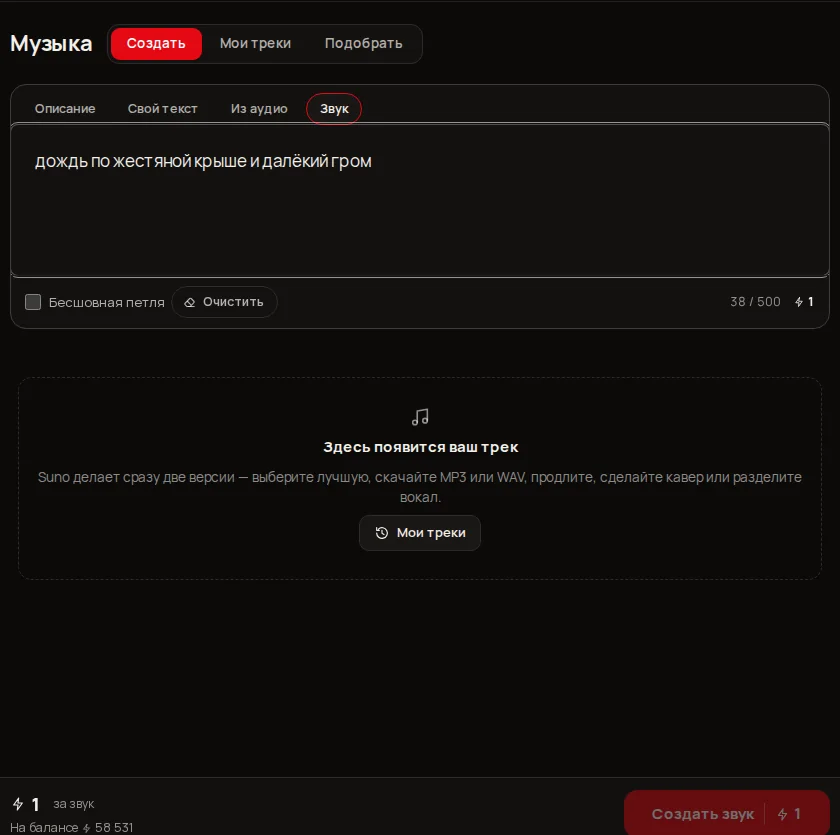
Up to 500 characters: “rain on a tin roof, steps on gravel, a stadium roar…”.
- Switch on “Seamless loop” if needed
The sound can then be looped without a click.
- Click “Create sound”
The price is ⚡1 (“per sound”), usually about 25 seconds. The result is saved to “My tracks” labelled “Sound”.
10The result, time and money
Suno returns two versions of the track at once: on the result card they switch with the numbers 1 and 2. A track is usually ready in about 50 seconds; the screen counts the time and shows the steps “Sending → Writing the music → Mixing two versions”. The result card lets you download MP3 and WAV, extend the track, make a cover and much more — that is described on the page What to do with a finished track.
| Operation | Price |
|---|---|
| Create a track (description or own lyrics), two versions | ⚡4 |
| Create a sound | ⚡1 |
| Write song lyrics | ⚡1 |
| “More detail” (expand the style) | ⚡1 |
| Save a voice for new songs | free |
11“My tracks”
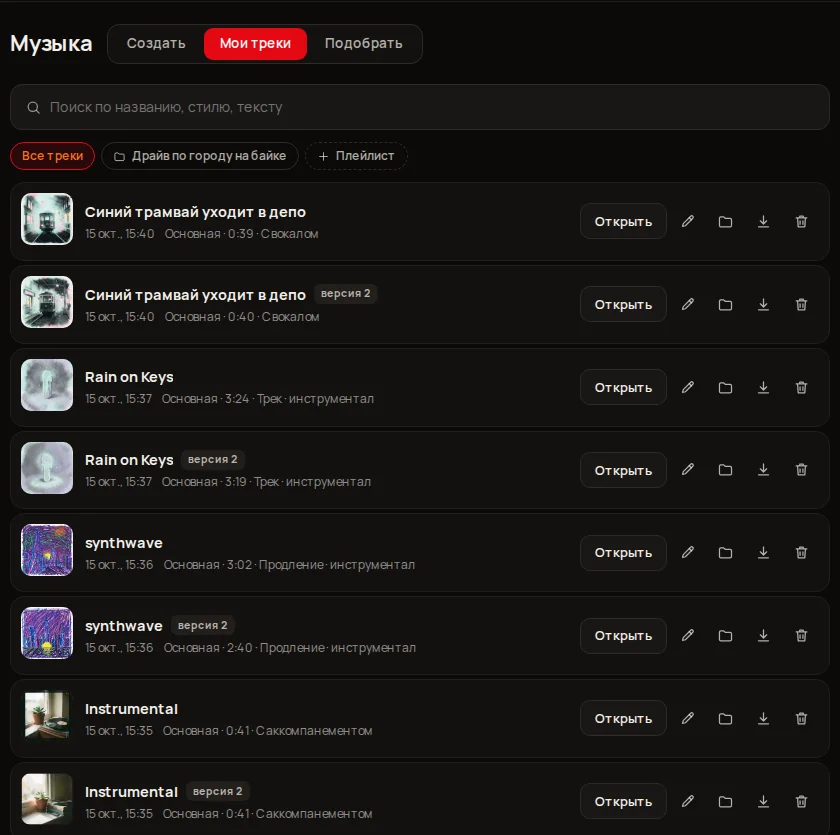
Every finished track (and each of its versions as a separate row) lands in the My tracks tab. The newest come first, with no expiry.
- Search “Search by title, style, lyrics” (words separated by spaces; all must be found).
- Playlists: the “All tracks” chip and your playlists; the Playlist button creates a new one. Add a track to a playlist with the Add to playlist icon. Deleting a playlist does not erase tracks.
- On a row: Open (the result card with all actions), Rename (up to 120 characters), Add to playlist, Download MP3, Delete (confirmed by a second click). A track may carry STEMS, TIMESTAMPS and VOICE badges, and a second version is marked “version 2”.
- If the provider’s file expired before it was saved, the row says “file expired”.
12The “Pick” tab
Here you describe a scene and a language model suggests well-known songs that would fit it (with a reason). The Add to project button adds a song as the project’s background music, Remove background music takes it off. It works when a project has been started in Studio. The pick is paid: “a few ⚡ per language-model request” — the exact price is not shown on the screen.
13Limits and refusals
- Suno does not accept artist names: describe the sound in words (“female voice with a rasp, 80s”), not “like ...”. The ⚡ are refunded.
- Lyrics that resemble a known song are rejected (“The lyrics resemble a known song — change the words”). A track from the rights holders’ catalogue is not accepted for “From audio” either.
- Your own lyrics cannot be sung without vocals (“Your own lyrics can't be sung without vocals”).
- If Suno does not answer in time or rejects the lyrics, the ⚡ are refunded and you can try again with other wording.
?FAQ
How much does one track cost?
⚡4 per operation, and you get two versions back (about $0.10). A sound costs ⚡1. The price does not depend on the Suno version or the track length.
How do “Standard”, “Fast” and “Bold” differ?
They are Suno V6, V6 Mini and V6 Wild. “Standard” gives live vocals and rich sound, “Fast” is lighter and quicker (for drafts), “Bold” more often goes for unexpected decisions. They cost the same.
How much text can I enter?
Up to 3,000 characters in “Description”, up to 5,000 in “My lyrics”, up to 500 in “Sound”. If you set the length of an instrumental, the description together with the style must fit within 1,000.
How do I make a duet?
Open “My lyrics”, click the “Duet” template and write words under tags like [Verse 1: Male], [Verse 2: Female], [Chorus: Duet]. The one you name after the colon sings.
Where do my tracks go?
All of them go to “My tracks”: you can search, sort into playlists, rename (up to 120 characters), download MP3 or delete. Deleting a version erases its files for good.
Can I get a song like a famous band’s?
Suno does not accept artist names, and lyrics resembling a known song are rejected. Describe the genre, tempo, instruments and mood in words.
Can I use the tracks in a video?
Yes: the “In video” button on a track card sends it to “Editing” as music. More on the page What to do with a finished track.
Related
What to do with a finished track
Under the player of every finished track in “Music” there is a row of buttons: download in high quality…
Read more →Voiceover: from words to a finished mp3
The “Voiceover” screen turns text into speech: you write or paste a text, choose a voice and a quality level…
Read more →Subtitles: the speech from your clip as text on screen
Many people watch clips without sound, and platforms and editors need files with text. The “Subtitles” window…
Read more →Billing, plans and balance: how it works
Gibrid has one balance for everything: chat, images, video, voice and agents. It is spent in ⚡ G-tokens, and…
Read more →Ideas and “My prompts” in Gibrid: find ideas, store prompts
If you don't know where to start, Gibrid has three sources of ideas: hints under the empty chat field, the…
Read more →