 GIBRID.AISchool
Subtitles: the speech from your clip as text on screen
Many people watch clips without sound, and platforms and editors need files with text. The “Subtitles” window in the clip viewer recognises the speech and either burns it into the picture right in the video or gives you a file with text and timecodes. The price is shown before you start, and if the clip has no speech, the payment is refunded.
- Open a finished clip → in the “Actions” bar press Subtitles → choose Burn into the video or .srt file only, the speech language and the style.
- The result: when burning in — a new entry in the feed with subtitles, the original clip does not change; in any case you can download the .srt and .vtt files.
- The price by clip length is written on the button: on short clips it says “less than 1 token” (a 6-second clip costs $0.02).
- If the clip has no speech or burning in fails, the payment is refunded.
1How to make subtitles
- Open the clip
In Studio open a finished clip full screen — in the “My generations” feed or in a project.
- Press “Subtitles”
In the Actions bar at the top of the viewer. The “Subtitles” window opens.
- Choose what to do
The “What to do” block has two options: Burn into the video (selected at once) — the subtitles become part of the picture; .srt file only — you get only the text files and the video is not changed.
- Choose the speech language
In the “Speech language” block: Detect automatically (selected at once), Russian, English, Spanish, German or French. If you know the language, specify it — it is more reliable.
- Choose the style
The “Subtitle style” block appears only when burning in: Box, Large with outline (selected at once) or Yellow.
- Check the price and press “Make subtitles”
The button reads “Make subtitles · …” and the price — for example “less than 1 token”. While it works, the button says “Recognising speech…”, and the window does not close with Esc or a click outside.
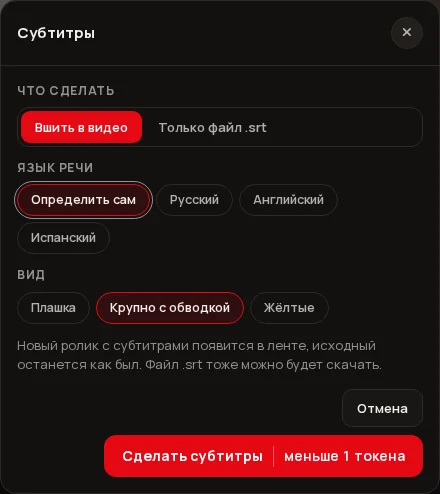
A hint is shown under the choice. When burning in: “A new subtitled clip will appear in your feed; the original stays as it is. You can also download the .srt file”. For the file: “An .srt file works with YouTube, Reels and any video editor”.
2Three looks of subtitles
- Box — small text on a dark backing: neat and does not fight with the picture.
- Large with outline — large bold white text with a black outline, readable on any background. This look is selected by default.
- Yellow — bold yellow text with a black outline, familiar from clips for social networks.
The look applies only to burned-in subtitles: .srt and .vtt files contain only text and time, and the look in them is set by the player or editor.
3What you get
When everything is ready, the window shows “Done. The subtitled clip has been added to your feed” (when burning in) or “Done. Download the subtitle file” (if you chose the file). The buttons in the result window:
- Open the clip — opens the clip with the burned-in subtitles; it is already in your feed as a separate entry.
- .srt — downloads a subtitles.srt file, the most common format: it works with YouTube, Reels and any video editor.
- .vtt — downloads a subtitles.vtt file (a format for the web and players).
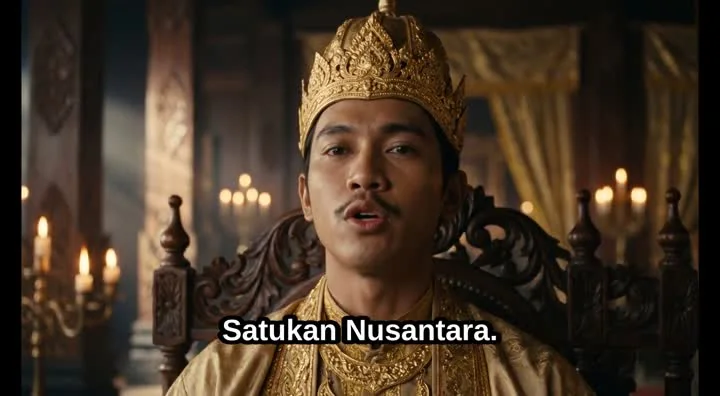
The original clip stays unchanged: the burned-in subtitles live in the new entry. The .srt and .vtt files are available in both modes. If you also need the speech translated into another language, that is a separate feature: translating a clip.
4How much it costs
The price is calculated by clip length: speech recognition costs about $0.013 a minute (but not less than $0.01), and burning into the picture adds another $0.01. Studio finds out the length of your file and shows the sum before you start. While the sum is under $0.025, the button says “less than 1 token”: that is about a minute of clip with burning in, or almost two minutes for an .srt file.
| Clip length | Burn into the video | .srt file only |
|---|---|---|
| up to 1 minute | less than 1 token (a 6-second clip — $0.02) | less than 1 token |
| 2 minutes | 1 token | 1 token |
| 5 minutes | 3 tokens | 3 tokens |
| 10 minutes | 6 tokens | 5 tokens |
| 30 minutes | 16 tokens | 16 tokens |
| 60 minutes (maximum) | 32 tokens | 31 tokens |
5Restrictions
- Clip length — no more than 60 minutes; for longer ones the screen replies “The clip is too long for this action”.
- The window has five speech languages (Russian, English, Spanish, German, French) plus automatic detection. If the speech is in another language, try “Detect automatically”, but quality is not guaranteed in that case.
- You can have at most 3 subtitle jobs running at once.
- The subtitle text cannot be edited in the window: typos can be fixed only in the downloaded .srt file in a video editor.
- For burned-in subtitles the clip is rebuilt, so burning in can take longer than getting just an .srt file.
?FAQ
How much do subtitles cost?
It depends on the clip length. For short clips of about a minute — less than 1 token; a 6-second clip with burning in costs $0.02. For two minutes — 1 token, for five — 3. The exact price is written on the button before you start.
How does “Burn into the video” differ from “.srt file only”?
When burning in, the subtitles become part of the picture of a new clip that appears in the feed. “File only” creates no new entry: you get .srt and .vtt files for YouTube, Reels or editing.
What if the clip has no speech?
The job ends with the error “No speech found in the clip — the payment was refunded”, and the money comes back in full.
Can I fix the subtitle text?
Not in the window. Download the .srt file and fix it in any video editor.
Which languages are supported?
The window offers Russian, English, Spanish, German and French, plus “Detect automatically”. For other languages you can try automatic detection.
Where do I find the clip with subtitles afterwards?
In your “My generations” feed in Studio: it is a new entry next to the original clip.
Related
Translate a clip: the same clip in another language
Do you have a clip with speech and need a version in another language? “Translate the clip” recognises the…
Read more →Finishing a clip: format, brand bar, editing and zip — free
The clip is ready, but you need a vertical version for Reels, a bar with your phone number, or a cut of…
Read more →Edit the clip with words: “make it night” instead of a new shoot
The clip is almost right, but you need other weather, time of day or clothes? The viewer of a finished clip…
Read more →Share a link to your work: you publish, and you can hide it any time
Need to show an image or clip to a friend, a client or in a messenger? Every finished work of yours has a…
Read more →Animate a photo: from a picture to a clip in one step
Want a still photo to breathe, move its hair, or be circled by a camera, without learning about models and…
Read more →