 GIBRID.AISchool
Account settings: profile, security, memory, keys
All personal options live on one Settings screen: avatar and plan, password and email, theme and language, memory about you, the list of devices, API keys and a Danger zone with data export and account deletion.
- Open the profile menu (your avatar in the left panel) and click Settings. Direct link: gibrid.ai/chat/settings.
- Seven tabs: Profile, Security, Preferences, Memory, Sessions, API keys and Danger zone. On a phone you first see a list of sections, and each section opens as its own screen.
- Memory about you is switched off with the "Remember facts about me" toggle; "Do not remember" keeps what is already saved but writes nothing new.
- The email about a finished generation is off by default. You turn it on in Preferences, and it goes only to a verified address.
- Before deleting the account you can download your data with "Download my data (JSON)". Deleting requires typing the word DELETE.
1How to open Settings
- Open the profile menu
Click your avatar or name at the bottom of the left panel in Chat or Studio.
- Choose Settings
A screen opens with sections on the left (a list on a phone). At the top there is a Back arrow; if Settings is open as a window inside Studio, it is a Close button instead.
- Go to the section you need
Sections: Profile, Security, Preferences, Memory, Sessions, API keys, Danger zone.
There is also a Connections tab (Google Calendar and Drive), but it is hidden: those connections are not available in chat yet, so you will not see it in the list of sections.
2Profile: avatar, name, plan
At the top of the tab there is a card with your avatar, name and email. Below are four rows: Display name, Username, Email and Current plan (for example, Pro).
- Upload an avatar
Click Upload and choose a JPG, PNG or WebP file up to 5 MB. The new avatar appears at once, no reload needed.
- Remove it if you no longer want it
Once an avatar is uploaded, a Remove button appears next to it. The first letter of your name is shown instead.
3Security: password and email
- Change the password
In the Change password block enter Current password, New password (at least 8 characters) and Repeat password, then click Save. If the two new passwords differ, "Passwords don't match" appears under the field.
- Change the email
In the Email block type the new address and click Save. A confirmation message goes to the new address: "Check your new email - we sent a confirmation".
- Verify the email
The Verify email button sends a letter with a link. Click the link in the letter and the address becomes verified. If the address is already verified, no new letter is needed.
Changing the password signs you out on your other devices: they have to sign in again, while the current session stays. Changing the email marks the address as unverified at once until you confirm it with the new link.
Requests to change the email, to send a verification letter and to change the password are rate-limited (a few attempts per 15 minutes), so do not click the buttons many times in a row.
4Preferences: theme, language, notifications
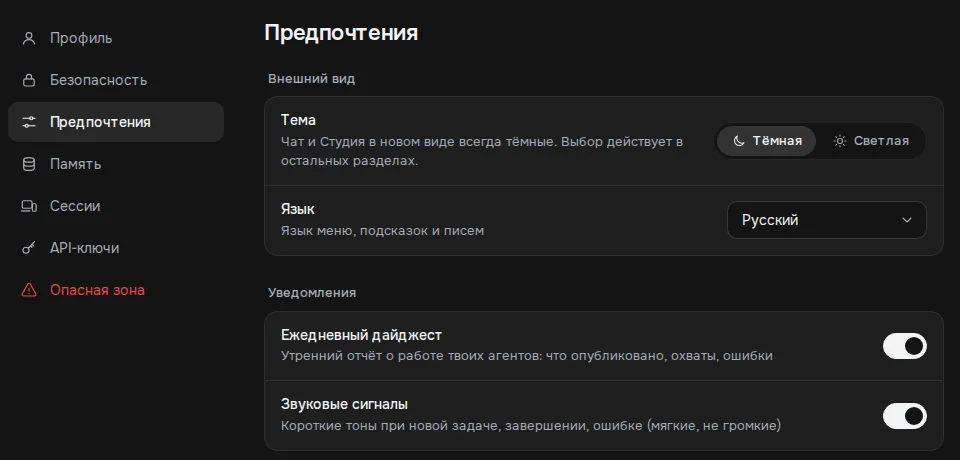
- Theme - the Dark / Light switch. Chat and Studio in the new look are always dark; a note under the switch says so: the chosen theme applies to the other parts of the site.
- Language - a drop-down list: Russian, English, Spanish, Arabic and Indonesian (shown by their own names). The hint reads "Language of menus, hints and emails". The language changes at once and is saved to your account; for Arabic the interface mirrors right to left.
- Daily digest - a morning report on your agents: what got published, reach, errors. On by default.
- Sound alerts - short soft tones on a new task, completion or error. On by default; this setting is stored on the current device.
- Email when a generation is ready - an email to your verified address when a clip or image is done, at most once every 15 minutes. Off by default: turn it on only if you want such emails.
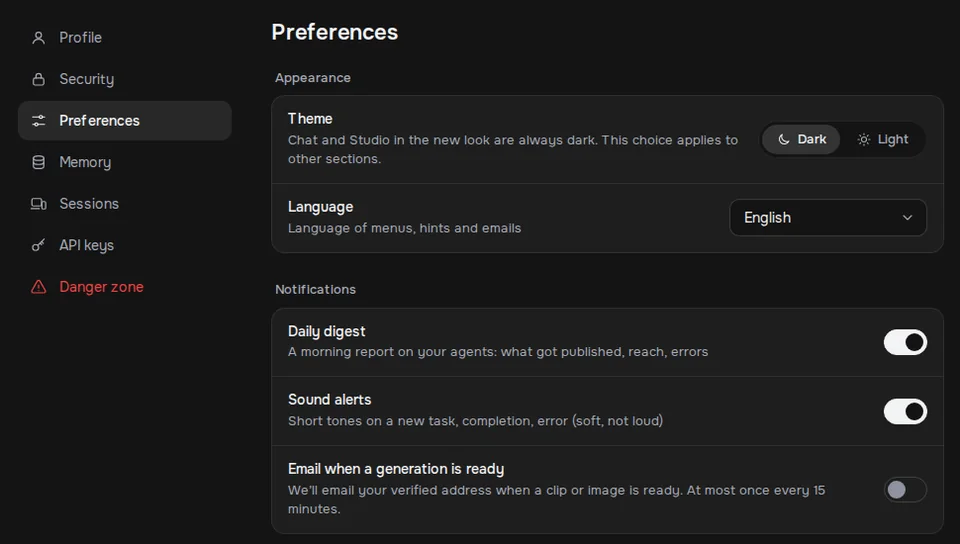
If the server could not save a notification toggle, it flips back and the message "Could not save the setting" appears - try again.
5Memory: what the assistant knows about you
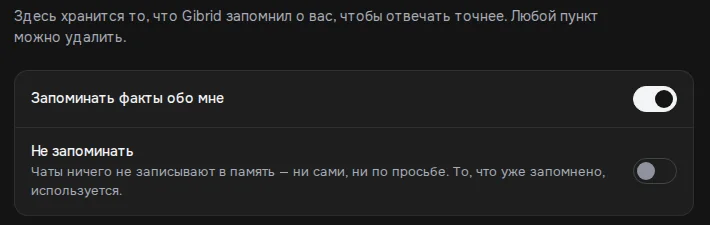
The top of the tab says: "This is what Gibrid remembers about you to give better answers. You can delete any item." How memory works in chats and in souls is described in Memory and a soul's lessons.
- Remember facts about me - the main switch. When it is off, memory is neither filled nor used.
- Do not remember - chats write nothing to memory, neither on their own nor on your request, but what is already saved is still used. The toggle is unavailable while the main one is off.
- Facts - the list of entries with a counter. Each entry has a cross, Delete. If the list is empty you see "Nothing remembered yet."
- Add a fact about yourself - a field and the Add button: the entry appears in the list at once.
- Import memory - the Import from text button: paste text about yourself or memory exported from another service (at least 20 characters) and click Extract facts. Gibrid picks out the facts and adds them to the existing ones; then "Memory updated" appears. Import is free but limited to 10 times a day.
- Clear memory - the Delete button on that row. A window asks "Clear all memory?"; after you confirm, all facts are erased and cannot be brought back.
The size of memory is limited: everything is stored in one profile of up to 16,000 characters.
6Sessions: where you are signed in
The tab caption reads: "Devices that are signed in to your account." Each row shows the device name, the sign-in method and system (for example "Telegram · iOS 26.5"), the country and the time of last activity. The current device is marked "This device" and "online".
- Spot an unfamiliar device
Compare the device, country and time. The current session is always first in the list.
- Click Sign out
Next to a foreign session click Sign out and confirm: "End this session? That device will have to sign in again."
- Or sign out everywhere
The Log out of all devices button, after confirmation, closes all sessions including this one - you will have to sign in again everywhere.
7API keys: access for Claude Code and scripts
The tab is described like this: "Long-lived keys for external clients (Claude Code MCP, scripts). Usage is billed to your balance within the key's caps." A key is for programs you allow to generate on your behalf; it does not let anyone sign in to the site.
- Give it a name
In the New key block fill in Name (up to 100 characters, the hint is claude-code). If left empty, the key is named api-key.
- Set the caps
"Daily cap, $" and "Monthly cap, $" are in dollars, not ⚡ ($1 = 40 ⚡). They are pre-filled with 10 and 100. If you empty the daily cap, the server puts $20 per day instead; an empty monthly cap means no monthly limit (the ∞ sign).
- Click Create key
A key like gib_... is shown once: "The key is shown only once - save it now." Copy it with Copy. You cannot view it again - only its beginning stays in the list.
- Watch the spending
In the Active keys list each key shows its caps ("Caps: $10/day · $100/mo"), how much is "spent" and when the key was last used.
- Revoke a key you do not need
Use Revoke and confirm: "Revoke this key? Everything using it will stop working. A revoked key cannot be restored." Revoked keys move to a collapsed Revoked list.
- You can have at most 10 active keys at a time.
- A key opens only what is needed for generation: images, video, music and voice, questions to models, the balance and the model catalog, the list of souls. It cannot create new keys or change your profile or payment.
- Every charge made with a key comes from your balance and counts toward the key's daily and monthly cap. When a cap is used up, generations with that key are rejected, while your main account keeps working.
After you create a key the window shows the hint "Connect to Claude Code - run in your terminal" and a ready command `claude mcp add gibrid-media ...` with your key. The server file path in it is the path on Gibrid's own machine, so on your computer you must replace it with yours; the school has no step-by-step guide to installing the MCP server yet.
If you allowed an app such as Claude Desktop to use Gibrid through sign-in, a Claude connections block appears at the bottom of the tab: the app, its daily cap, spending and a Revoke button. While there are no such connections the block is not shown.
8Danger zone: data export and account deletion
- Download your data
In the Data export row click Download my data (JSON). The browser saves a file named gibrid-export-....json.
- Click Delete account
The red Delete account button opens the window "Delete your account for good?". It reminds you that deletion is irreversible and that chats, souls, agents and paid credits will be lost.
- Type DELETE
In the field "Type DELETE to confirm:" enter the word DELETE (letter case and spaces at the edges do not matter). Only then does the Delete for good button become active.
The export file contains your profile (without the password), the balance history, orders, your souls and groups and up to 1,000 of the latest messages from chats with souls. Assistant chats, Studio works and uploaded files are not in this file, so download valuable works separately from My generations.
What happens right after you confirm: the account is blocked, the email is replaced with a placeholder, the password and name are erased, the Telegram, Apple and Google sign-in links are removed, all sessions, API keys and connections are revoked and device notifications are switched off. You are signed out of the site. You cannot return on your own: signing in again with Telegram, Apple or Google creates a new empty account.
The content itself (chats, works, souls) is deleted by a separate nightly clean-up after a retention period; the server default is 30 days. The payment history stays, anonymised. The exact terms are in the Privacy Policy and on the page gibrid.ai/delete-account.
?FAQ
Where do I change my name?
On the Profile tab the name is only displayed and there is no field to change it. You can change the avatar there, and the email and password on the Security tab.
Why does the theme not change in chat?
Chat and Studio in the new look are always dark. A note under the theme switch says the choice applies to the other sections. It is not a bug.
Will I get an email when a clip is ready?
Only if you turned on the "Email when a generation is ready" toggle in Preferences. It is off by default. The email goes to a verified address, at most once every 15 minutes.
Can a key spend more than its cap?
No. A key spends your balance within the daily and monthly caps set when it was created. The caps are in dollars: $1 = 40 ⚡. If you need a different cap, create a new key and revoke the old one.
I forgot to save the API key. How can I see it again?
You cannot: a key is shown once. Revoke the old key and create a new one.
What remains after I delete the account?
Access is closed at once, and the content is deleted by a separate clean-up after a retention period (the server default is 30 days). The payment history stays, no longer tied to your name. Details are on gibrid.ai/delete-account.
What does "Do not remember" mean?
Chats stop writing new facts, but the assistant still reads what is already in memory. To stop memory being read altogether, switch off "Remember facts about me" or open a temporary chat.
Related
Memory and a soul's “lessons”: what the AI remembers about you
Gibrid can remember stable facts about you across different chats (name, profession, preferences) to answer…
Read more →Temporary chat and memory: what is remembered and what isn't
Sometimes you want to ask something personal so that it doesn't end up in your history or in the assistant's…
Read more →Billing, plans and balance: how it works
Gibrid has one balance for everything: chat, images, video, voice and agents. It is spent in ⚡ G-tokens, and…
Read more →Invite friends: codes, links and ⚡ rewards
Anyone can issue personal invite codes. Your friend gets ⚡ right after signing in with your code, and you get…
Read more →Support center: write a message and get a reply
You have one shared conversation with support: questions about payments, generations, your plan and your…
Read more →