 GIBRID.AISchool
Temporary chat and memory: what is remembered and what isn't
Sometimes you want to ask something personal so that it doesn't end up in your history or in the assistant's memory. That is what the “Temporary chat” button in the header of a new chat is for. Below: how it works, what the memory lines under replies mean, how to switch remembering off completely and how to bring your memory over from ChatGPT or Claude.
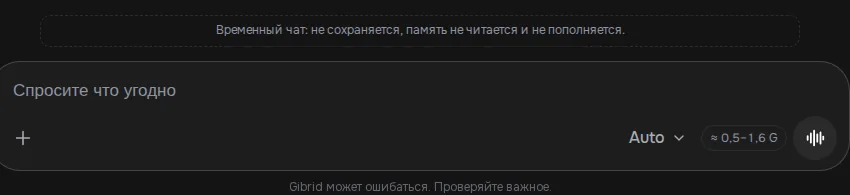
- Open a new chat on gibrid.ai/chat and click the Temporary chat button at the top right. The chat is not saved, memory is neither read nor updated, no ?c= address appears, and a banner sits above the input field.
- You can turn the mode on only in an empty chat, not in the middle of a conversation. Replies are charged as usual.
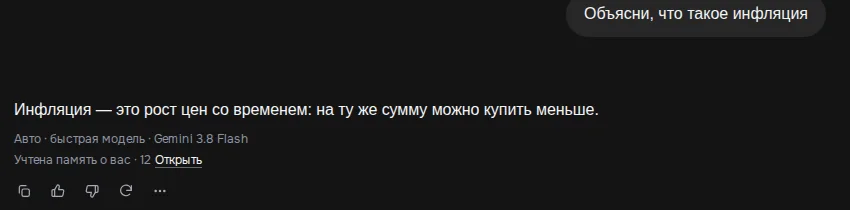
- In a normal chat, under the first reply you may see “Your memory was used · N · Open”, and after your “remember…” request, “Remembered · Open”.
- To stop writing to memory entirely, go to Settings → Memory: the Do not remember switch. Sensitive things (health, money, passwords, documents) are never remembered.
- To bring over memory from ChatGPT or Claude: Settings → Memory → “Import memory” → Import from text → Extract facts.
1What a temporary chat is and when you need it
A normal chat is saved in the side panel, and the assistant takes into account the shared memory about you (name, profession, preferences) and can add to it on its own. A temporary chat is a conversation “off to the side”: neither history nor memory takes part. It suits trying an unusual idea, asking about something personal, or simply not wanting a question to affect future replies.
2How to turn it on
- Open a new chat
Click New chat in the side panel or open gibrid.ai/chat. The temporary-mode button exists only in a new, still empty chat.
- Click the “Temporary chat” button
It is at the top right of the chat header, to the left of the headphones icon. On hover the caption says “Temporary chat: no memory and nothing saved”. Once on, the button is highlighted and the hint changes to “Temporary chat is on — click to turn off”.
- Check the banner above the input field
It reads “Temporary chat: not saved, memory is neither read nor updated.”
- Write as usual
Model choice and Auto mode work the same way. To turn the mode off, click the same button while the chat has no messages.
3What exactly happens and what doesn't
- Memory is not read. The assistant answers without knowing what you had told it about yourself before. That's why there is no “Your memory was used” line under the reply.
- Memory is not updated. The “remember / forget / what do you remember” tools are removed, and the background analysis after a reply doesn't start.
- History is not saved. The conversation doesn't get into the chat list and has no ?c= address. Close or refresh the page and the conversation is gone. Chat search will not find such messages.
- The start of a long conversation is not condensed into a summary, and the feature hints (“Repeat”, “Save to My prompts”, “Share”) are not shown.
- Money is charged as usual. A temporary chat hides the conversation from history and memory, not from your balance: a reply costs the same as in a normal chat.
4Memory lines under a reply: “Your memory was used” and “Remembered”
In a normal chat a small memory line may appear under a reply:
- “Your memory was used · 12 · Open”. Shown under the first reply of a new chat if your memory has entries: the number is how many entries the assistant received. The Open link leads to Settings → Memory, where you can read and delete everything. There is no such line in a temporary chat, because memory isn't used.
- “Remembered · Open”. Appears when you asked it to remember something yourself (“remember that I'm vegetarian”) and the assistant successfully saved the fact. The assistant says “remembered” only after a real save.
The pop-up “Memory updated” is gone: it got in the way, especially in chats with souls. Background saves are visible only in the memory itself (Settings → Memory).
5The “Do not remember” setting and the saving rules
- Open the memory settings
Click your name at the bottom of the side panel → Settings → the “Memory” tab. Or open gibrid.ai/chat/settings?tab=memory.
- Pick a switch
“Remember facts about me” turns memory on or off as a whole. “Do not remember” forbids chats from writing anything: “Chats write nothing to memory — neither on their own nor on request. What is already saved is still used.”
- Check the list
Below, the “Facts” block holds all the entries. You can delete any with the trash icon, add your own (“Add a fact about yourself” → Add) or delete everything with Clear memory.
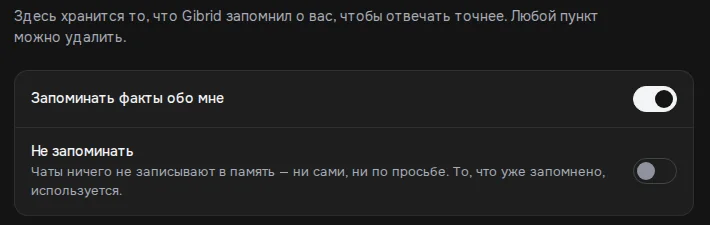
By default “Do not remember” is off. What exactly the assistant saves on its own, and how often:
- Only what you told it about yourself directly: your name and how to address you, profession, city, language, projects, tools, tastes and preferences, the answer style you want. Guesses and the content of one-off tasks are not saved.
- The background analysis starts only if you talk about yourself (“I…”, “my…”) and the message isn't extremely short.
- Background saves are limited: no more than once every 3 minutes and no more than 5 times a day.
- An explicit request “remember…” or “forget…” works without these limits (and without the length threshold).
- Sensitive things are never saved, even on request: health and illnesses, medication, money and income, debts, card and account numbers, passwords and keys, documents (passport and the like), religion, politics, intimate life. A filter cuts such lines out.
- The same rules apply in chats with souls and in the “Models” section: they share the memory analysis.
6Bring over memory from ChatGPT or Claude
If you used another assistant before, it may already know a lot that is useful about you. You can bring that over into Gibrid. The link “Import memory from ChatGPT or Claude” is in the “Your first result in a minute” window for new users, and the feature itself is in Settings → Memory.
- Get the text from the other service
In ChatGPT or Claude, ask it to write out everything it remembers about you, and copy the answer. Before pasting, delete anything you don't want to bring over, such as passwords or passport data.
- Open the “Import memory” block
Settings → Memory → the “Import memory” block → the Import from text button.
- Paste the text and click “Extract facts”
The hint in the window: “Paste text about yourself or memory exported from another service — we'll extract the facts.” Gibrid picks short facts out of the text and adds them to those you already have; the success message is “Memory updated”.
- Check the list
Open the “Facts” block and delete anything extra with the trash icon.
?FAQ
What is a temporary chat in Gibrid?
It is a mode of a new chat in which the assistant neither reads nor writes your memory, and the conversation isn't saved to history and gets no ?c= address. It is turned on with the “Temporary chat” button in the header of an empty chat; a banner “Temporary chat: not saved, memory is neither read nor updated” sits above the input field.
Is money charged in a temporary chat?
Yes. Replies are paid for as in a normal chat; the mode hides the conversation from history and memory, not from your balance.
Can I make an already started chat temporary?
No. The button works only in an empty chat. Open a new chat and turn the mode on before the first message.
Why is there no “Your memory was used” line under a reply?
Possible reasons: the chat is temporary; there are no entries in memory yet; memory is off in the settings; it isn't the first reply of the chat (the line is shown under the first reply). You can look at your memory in Settings → Memory.
How do I make the assistant forget a fact?
Say “forget that …” in a normal chat, or open Settings → Memory and delete the entry with the trash icon. “Clear memory” deletes everything after you confirm “Clear all memory?”.
Will the assistant remember my password, diagnosis or card number?
No: such data is not saved either automatically or on a “remember” request. Passwords, keys, documents, health, money, religion and politics are cut out by a filter, and the assistant's own instructions forbid it too.
Is the temporary chat available on the web or in the apps?
The “Temporary chat” button described here is in the web version gibrid.ai/chat. There is no information about the iOS and Android apps in these settings.
Related
Memory and a soul's “lessons”: what the AI remembers about you
Gibrid can remember stable facts about you across different chats (name, profession, preferences) to answer…
Read more →Auto mode: a fast model for simple things, a strong one for hard ones
A new chat on gibrid.ai/chat starts in Auto: for every message, Gibrid picks the model itself. A greeting, a…
Read more →Your first conversation in Gibrid chat
Chat is Gibrid's main screen: one input field, with models like GPT, Claude and Gemini behind it. Here is how…
Read more →Links: sharing a chat or a soul safely
You can show a good conversation to others by link: the person opens a read-only page and sees a snapshot of…
Read more →Support center: write a message and get a reply
You have one shared conversation with support: questions about payments, generations, your plan and your…
Read more →