 GIBRID.AISchool
Compare models: one question, answers side by side
Not sure which model will handle your task better? The “Compare models” screen sends one request to two or three models at once and puts the answers side by side, showing the time to first word and the total time.
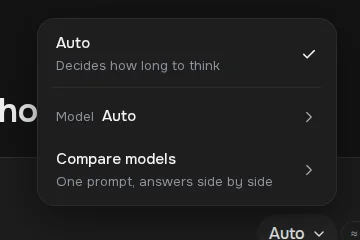
- Open the mode menu under the input field → “Compare models”, or the address gibrid.ai/chat/compare.
- Choose 2–3 models, write a question and click “Compare”.
- Each model's answer is paid for separately; the screen says so.
- Comparisons are saved in the history; you can mark the best answer and continue the conversation with the model you liked.
1How to open a comparison
- Open the mode menu
In the chat, click the mode button under the input field (it says “Auto” by default). The menu has three rows: the mode, Model and Compare models.
- Choose “Compare models”
Under the item name is the caption “One question, answers side by side”. It opens the comparison screen.
- Or go to the address
The same screen opens directly: gibrid.ai/chat/compare.
The screen has the heading “Compare models” and the explanation: “One request goes to 2–3 models, the answers stand side by side. Comparisons are saved in the history”.
2Compare in three steps
- Choose models
In the “Models to compare” block, two models from different developers are already filled in; you can replace them. Auto does not take part in a comparison: only specific models are compared. The Add model button opens a list with tabs by developer; Remove deletes a model. You can choose from 2 to 3 models; on a fourth the screen says “No more than 3 models”.
- Write a question
In the “Ask several models something” field, enter the same request for all. For a fair comparison, state the task fully: role, format, length.
- Click “Compare”
The button is active when 2–3 models are chosen and the text isn't empty. The columns start filling at the same time, each with the status “Writing”. To stop everything at once, use Stop all; to stop one column, Stop.
3How to read the result
- Columns. Each column is one model; while there is no answer, it says “The answer will appear here”.
- Time. After finishing, a column shows “First token” (how many seconds until the first word appeared) and “Total” (the total answer time).
- Copy. Copies the text of that model's answer.
- Mark as best answer. Marks the winner; the mark is saved in the history (“Best answer”), and Remove mark removes it.
- Continue in chat with this model. Opens a chat with the chosen model, and your question is filled into the input field (it isn't sent by itself).
If a model has an error, its column shows a message (“Couldn't get an answer”), and the others keep working. If an answer is very long, only the beginning goes into the saved record: “The answer is long: only the beginning was saved”.
4How much a comparison costs
5Comparison history
Every comparison is saved automatically. The list opens with the History button (to hide it, Hide history). In it:
- a “Search comparisons” field;
- actions on an entry: Rename, Pin / Unpin (the number of pinned entries may be limited; when exceeded, the hint “Unpin the ones you don't need” appears), Delete (right after deleting, “Undo” appears);
- the New comparison button clears the screen, and Repeat runs the same question on the same models again.
If a model from an old entry has been removed from the catalog, it is skipped on repeat, and the screen says which models were skipped and offers to add others.
6Compare images
Images have a separate way: in the main chat, ask “draw this on five different models” or name the models (“on FLUX and Grok”). The assistant takes your prompt unchanged and shows a plan: each cell has its own model and price, and before launch you can Add model or Remove an extra one. Details are on the page about images and video from chat.
?FAQ
How many models can I compare?
From two to three. You can't add a fourth; the screen says the maximum is three.
Can I compare two models if one of them is expensive?
Yes, but you will pay for each answer at its own price. To save money, start with short questions.
Is the comparison history saved on other devices?
Comparisons are stored in your account and visible in the “History” list. Long answers are not saved in full.
Can I send a question with a file to several models?
The comparison screen has only a text field; it has no button for attaching files.
Can I compare Auto with another model?
No: the comparison screen lets you choose only specific models; there is no “Auto” row and no “≈ N G” prices in its list. To see which model Auto picked, ask in the main chat and look at the line under the answer, then compare that model with others here. More in Auto mode.
Related
Your first conversation in Gibrid chat
Chat is Gibrid's main screen: one input field, with models like GPT, Claude and Gemini behind it. Here is how…
Read more →Auto mode: a fast model for simple things, a strong one for hard ones
A new chat on gibrid.ai/chat starts in Auto: for every message, Gibrid picks the model itself. A greeting, a…
Read more →Images and video right in chat
Describe what you need in plain words: the assistant picks a model itself, shows the price and starts…
Read more →Chat tools: files, search, voice and scheduled tasks
The Gibrid assistant doesn't just answer in text: it reads your files, looks up fresh data on the web…
Read more →