 GIBRID.AISchool
Your first conversation in Gibrid chat
Chat is Gibrid's main screen: one input field, with models like GPT, Claude and Gemini behind it. Here is how to ask a question, choose an answer mode, return to an old conversation and quickly find what you need.
- Open gibrid.ai/chat, write a question in the “Ask anything” field and press Enter.
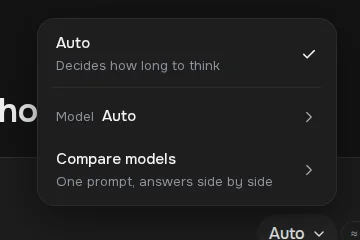
- The mode button under the field (“Auto” by default) opens a menu: Auto, Model and Compare models. In Auto, Gibrid picks a fast model for simple questions and a strong one for files, code and hard tasks.
- Next to the send button there is a price chip “≈ N G”: the approximate price of the next message; for Auto it is a range, for example “≈ 0.5–1.6 G”.
- Every chat is saved in the list on the left; chats can be pinned, renamed, archived and sorted into projects. A temporary chat is not saved and does not touch memory.
- Search across chats and messages: the Search button or ⌘K / Ctrl+K. A new user sees the “Your first result in a minute” window on first entry.
1Where to open chat and what is on the screen
Chat opens at gibrid.ai/chat. Without signing in you can try a few messages; to save chats, attach files and use voice input, you need to sign in (the screen hints at this with the labels “Sign in to save”, “Files after sign-in”, “Voice input after sign-in”).
On the left is the side panel: New chat, Search, Create soul, Studio, AI apps and the More item, with the list of your chats below. At the bottom of the panel are your name, the balance in G-tokens and the Top up button. In the center are the heading “Where shall we start?”, the “Ask anything” field and hints below it.
In the header of a new chat, on the right, there is the Temporary chat icon (visible only in an empty chat; more in temporary chat) and the headphones button Voice conversation (more in voice conversation).
2First entry: the “Your first result in a minute” window
If you have just registered and have no chats yet, the “Your first result in a minute” window opens over the chat. It has four ready-made cards, and the price of each is shown in advance. At the top you see your balance in G (“You have … G — enough for your first results”).
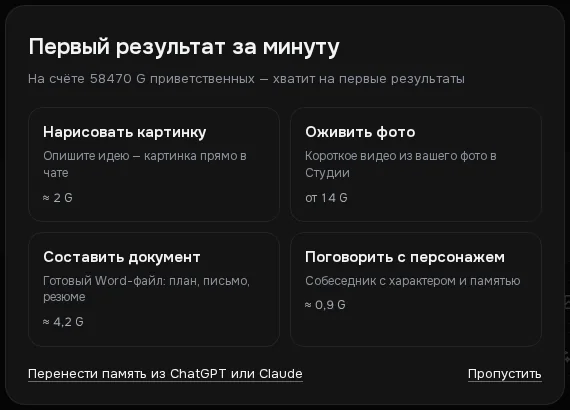
| Card | What happens | Price in the window |
|---|---|---|
| Draw a picture | Immediately sends a ready request to the chat (a coffee shop on a rainy evening); the image appears right in the chat. | ≈ 2 G |
| Animate a photo | Opens Studio: a short video from your photo. | from 14 G |
| Draft a document | Immediately sends a request for a Word file (a one-month personal goals plan); a file card arrives. | ≈ 4.2 G |
| Talk to a character | Opens the souls section: a companion with a personality and memory. | ≈ 0.9 G per message |
There are two links at the bottom of the window: Import memory from ChatGPT or Claude opens Settings → Memory (you can paste text about yourself there — see memory), and Skip closes the window. The window also closes if you click outside it; after that it does not appear again in this browser.
3Your first message
- Write a question
Click the “Ask anything” field and write your task in plain words, for example: “Explain in simple words what inflation is”. A new line is Shift+Enter; to send, press Enter or the Send button.
- Or tap a hint
There are ready-made hint buttons under the field. Clicking a hint sends its text as a message right away, so click only if you're ready to get an answer.
- Wait for the answer
While the model is answering, a Stop button appears instead of Send; it stops the answer. While the model works you can see the label “Thinking…”, and afterwards “Thought for N s” if the model reasoned.
- Keep the conversation going
Following messages go into the same chat, and the model remembers the previous lines. For a new topic, it's better to start a new chat with the New chat button (or ⇧⌘O / Shift+Ctrl+O).
4Answer mode and model choice
Under the input field is the mode button. It shows the name of the current mode, Auto by default. Click it and a menu opens:
- Auto: “Decides how long to think”. Suitable almost always.
- Model: the line with the current model's name. By default it also says “Auto”: Gibrid picks a model for every message itself (details in Auto mode). Click the line and a list opens: at the top is a separate “Auto” row (with a description and a price range), below it developer icons (OpenAI, Anthropic, Google and others) and the chosen developer's models with descriptions and the price “≈ N G” of the next message in this chat. If you choose a specific model, Auto is turned off in this chat; to bring it back, choose the “Auto” row again.
- Compare models: “One prompt, answers side by side”. Details are on the school page about comparing models.
5Message price before sending: the “≈ N G” chip
On the right of the input field, next to the send button, there is a price chip, for example “≈ 0.5–1.6 G”. It is the approximate price of the next message in this particular chat: the assistant's service part of the request, the length of the chat history and the typical reply length of the model are taken into account. Search and images are counted separately. For Auto the chip shows a range, from the fast model to the strong one.

When the price reaches 10 G, the chip becomes brighter, and its tooltip suggests a fast model or a new chat: the longer the history, the more each message costs. In the model list each row also shows “≈ N G” for this chat.
6How to read an answer and what you can do with it
Under the assistant's answer, a row of icons appears (each has a tooltip on hover):
- Copy: copies the answer text.
- Good answer and Bad answer: ratings. After a “bad” one you can briefly give a reason or click “Skip”. Clicking again removes the rating.
- Regenerate: get a different variant. If there are several variants, a 1/2 switch appears next to it.
- The “⋯” icon (More): Quote (adds a quote to the input field), Read aloud, Download as…, Pin, Delete. If the cost is known, the same menu shows a line “Cost ≈ N G”.
Under your messages there are Copy and Edit: you can fix the question and get a new answer. In the “⋯” menu of your own message there is Send again.
The Download as… item turns an answer into a file (Word, PDF and other formats); more on the school page about documents.
7Lines under an answer: “Continue”, Auto, memory, summary
Service lines may appear under the assistant's answer. They tell you what happened and cost nothing:
- “The reply was cut off by length · Continue”: the answer hit the length limit. Continue adds the rest to the same bubble with the same model; only the continuation is charged.
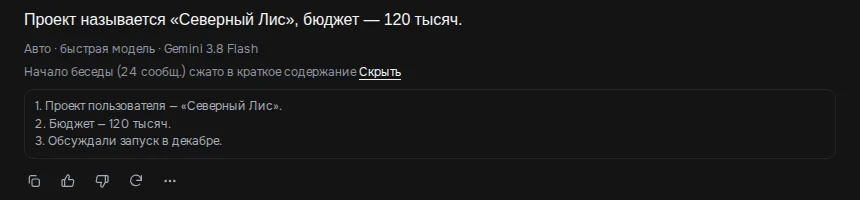
- “Auto · fast model · Gemini 3.8 Flash” or “Auto · strong model (code) · Claude Sonnet 5.5”: which model answered and why.
- “Your memory was used · N · Open”: the assistant used N facts from your memory; Open leads to Settings → Memory. “Remembered · Open”: the assistant saved a fact at your request (“remember…”).
- “The start of the conversation (N msg.) was condensed into a summary · Show”: in a very long chat, early messages are replaced by a short summary so the model does not lose the beginning; Show expands it.
8New chat and history
All chats are gathered in the side panel. Each chat has an Actions menu on the right:
- Pin / Unpin: pinned chats go in a separate “Pinned” block. You can pin no more than 10 chats.
- Rename: your own title instead of the automatic one.
- Archive: removes the chat from the main list; you can bring it back through the “Archive” block with the Restore from archive item.
- Move to project…: put the chat into a project (see the school page about projects).
- Delete chat: after confirmation “Delete this chat?”. The app says a deleted chat can be restored from settings.
- Temporary chat: an icon in the header of a new empty chat. Such a chat is not saved, does not appear in the list on the left, and neither reads nor updates memory. Above the input field there is a banner “Temporary chat: not saved, memory is neither read nor updated.” Details: temporary chat.
9Search across chats and messages
- Open search
Click Search in the side panel or press ⌘K / Ctrl+K. A window opens with the field “Search: chats · messages · agents · commands…”.
- Type a word
Type a word. The results show chat titles, souls, agents, groups and commands (for example, “New chat”), and from three letters on also matching messages: a fragment is shown around the match, and the word form does not matter (“cars” also finds “car”). Use the arrows to pick a row and press Enter: the chat opens right at that message.
- Search inside an open chat
Inside a chat, press ⌘F / Ctrl+F: a search across this conversation's messages opens with the Previous match and Next match buttons.
More about searching message text is on the page search across chats.
10How much it costs
?FAQ
Do I need to register to try it?
You can send a few messages without registering, as the chat page says. To save history and have files, voice input and generations work, you need to sign in.
How is “Auto” different from choosing a model?
The mode button is called Auto, and its menu has a Model line. By default the model is also “Auto”: Gibrid picks a fast model for simple messages and a strong one for files, code and hard tasks, and signs under the answer which model replied. If you want to decide yourself, choose a specific model in the Model line; the Fast and Thinking modes appear if that model has them.
How do I return to an old conversation?
Find it in the “Chats” list on the left, open it through Search, or look in the archive. Pinned chats are always at the top.
Where can I talk to a specific model directly?
Open Search and choose the command “Models (Direct)”. It is a separate section where the chat goes with the chosen model directly, not through the Gibrid assistant.
Why does the assistant call itself Gibrid?
In the main chat, the Gibrid service assistant answers: it knows about plans, sections and your generations. The text of the answer itself is created by the model chosen in the mode menu.
How much does one message cost?
The price depends on the model and the chat length. It is shown in advance by the “≈ N G” chip next to the send button (for Auto, a range such as “≈ 0.5–1.6 G”); the exact spend is shown after the answer in the “⋯” menu. Simple questions in Auto usually cost less than one G.
What is the “Your first result in a minute” window and how do I bring it back?
It is a new-user window: four cards with prices and a link to import memory. It appears once, while the account has no chats. A closed window does not reopen, but all four scenarios work without it: write a request in the chat, open Studio or the souls section.
Related
Auto mode: a fast model for simple things, a strong one for hard ones
A new chat on gibrid.ai/chat starts in Auto: for every message, Gibrid picks the model itself. A greeting, a…
Read more →Chat tools: files, search, voice and scheduled tasks
The Gibrid assistant doesn't just answer in text: it reads your files, looks up fresh data on the web…
Read more →Compare models: one question, answers side by side
Not sure which model will handle your task better? The “Compare models” screen sends one request to two or…
Read more →Projects: chats, instructions and files for one job
A project brings together chats, tasks and files for one job. The Gibrid assistant takes its instructions and…
Read more →Search chats and messages: from a word to the exact message
“Where did we discuss this?” Search now answers that question. It looks not only at chat titles but at the…
Read more →