 GIBRID.AISchool
Projects: chats, instructions and files for one job
A project brings together chats, tasks and files for one job. The Gibrid assistant takes its instructions and files into account in every chat of the project, so you don't have to retell the context each time.
- The “Projects” block is in the side panel above the chat list; you create one with the “New project” button, either there or on the “Projects” page, where the window lets you pick a “Study”, “Content” or “Work” template.
- A project has “Instructions” and “Files”: the assistant applies them in every chat of the project. You can see and edit them right in the chat: a bar above the input field with the “Project instructions” and “Project files” buttons.
- You can put a chat into a project through the “Move to project…” menu.
- Tasks in a project come from a connected Notion; you can't create tasks of your own in a project.
1Create a project
- Find the “Projects” block
It sits in the chat side panel above the chat list. The block's heading is a link to the “Projects” page (gibrid.ai/chat/projects) with a list of all projects; next to it is a collapse button for the block. Everyone has a project called “Личное” (Personal; it keeps this name in every interface language): it is created automatically and cannot be archived.
- Click “New project”
There are two ways. In the side panel a “Project name” field appears: enter a name (up to 200 characters) and press Enter; the project is created and you go straight to its page. On the “Projects” page, the “New project” button opens a window with a name, templates (see below) and the Create button.
- Open the project settings
Click the menu icon next to the project (Project actions) → Project settings. Here you'll find “Name”, “Instructions” and “Files”; the Save button saves the changes.
2Project templates: “Study”, “Content”, “Work”
In the “New project” window on the “Projects” page, three templates stand under the name. A template is a set of ready instructions: after the project is created they are written into the “Instructions” field right away, and you can change them.
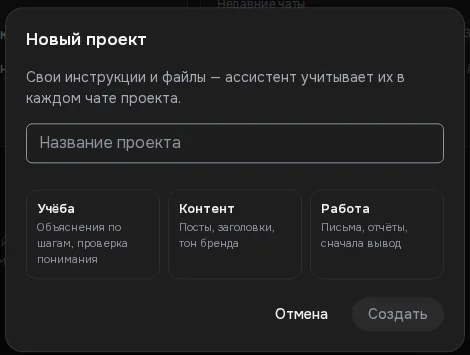
| Template | Caption | What is in the instructions |
|---|---|---|
| Study | Step-by-step explanations, quick checks | Explain simply and step by step, with examples; end each answer with 1–2 short questions; for a problem give a hint first and the full solution on request; rely on the project files (notes, textbooks) and name the source. |
| Content | Posts, headlines, brand voice | Write lively and short; for posts offer 2–3 headline options and a call to action; respect the platform (Telegram, Instagram, YouTube); keep the tone and facts from the project files. |
| Work | Emails, reports, conclusion first | Business style: conclusion first, then details as a list; emails and reports ready to send; take deadlines, numbers and names from the project files, and if data is missing, say so. |
Clicking a template selects it (clicking again deselects it); if the name field is empty, the template name is filled in. The instruction texts are ready in five interface languages. A template is optional: you can create a project without one.
3Instructions and files: what the assistant does with them
Instructions. In the “Instructions” field, describe how to answer in the project's chats: role, tone, important details. Example: “You help run a travel blog. Write briefly, without officialese, address me informally”. The assistant treats the instructions as mandatory for every answer in the project, even the shortest. The first 2,000 characters are used.
Files. Click Add file and choose a document, for example a brief, a price list or regulations. The assistant receives the text of the project's files along with your questions and answers based on them. What is important to know:
- up to 30 project files are used, newest first;
- the beginning of each file's text is taken (about 20 thousand characters), and about 60 thousand characters for all files together; if the file you need isn't included or is cut off, the assistant will say so and ask you to attach the file to the message;
- images, audio and video in a project aren't read as reference;
- you can delete a file with the cross “Delete file” next to it in the settings: click again when the button shows “Delete?”.
4Instructions and files right in the chat
You do not have to leave for the settings: when a project chat is open, the project bar stands above the input field.
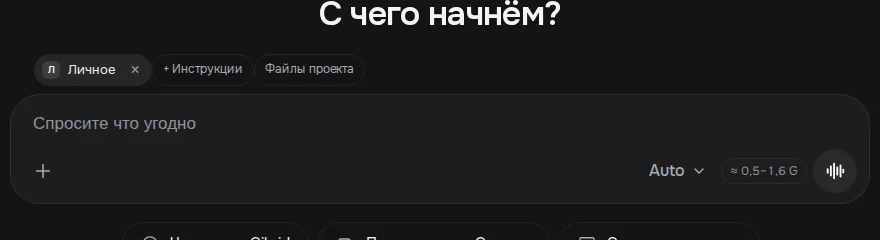
- A chip with the project name: clicking the name opens the project page, the cross (Leave project) takes the chat out of the project; the chat itself stays.
- + Instructions appears if the project has no instructions yet: it opens the settings right on the “Instructions” field. When instructions exist, the button is called Project instructions: it expands the text above the input field, and Edit opens the settings.
- Project files (with the file count, for example “Project files · 3”) opens the same settings on the file list: you can add a file or delete an unnecessary one.
5Chats inside a project
- A new chat in a project
Choose a project in the panel and click New chat; the chat address keeps the project choice. Or open the project page and click New chat in project.
- Move an existing chat
For any chat in the list, open the Actions menu → Move to project…, and choose a project (or No project to take it out of a project). The confirmation “Chat moved to project” appears.
- Leave the project
When a project is selected, there is a bar above the input field with the Leave project button: the chat stays but is no longer considered a project chat.
A project works specifically for the main Gibrid chat. If a new chat is opened in a project, the assistant “knows” the project from the first message: it understands phrases like “how are things on the project?” and “what about the tasks?” as questions about this project, not about your balance or generations.
6Project page
Click a project in the side panel or in the list: a page opens with a header (the name and the source, “Own project” or “From Notion”), a summary and columns:
- Chats. Recent project chats with a preview of the last reply and an Open chat button; the latest few are shown, the rest are available page by page.
- Tasks. The column exists only for a project with a task source (a connected Notion or at least one task). Tasks can be searched, filtered by deadline (Today, Week, Later, No deadline, Overdue) and by assignee (“Mine”), and sorted; “Completed” ones are collected on a separate tab. A task can be marked as done and returned with the “Undo” button.
- Side column. “Instructions” (with the Edit button), “Files” and the “On a schedule” block with a Create task link; scheduled tasks are shared across the account and not tied to a project.
At the bottom of the page is the field “Ask about the project …”. It sends nothing: the Open a new chat with this question button opens a new project chat, and the text appears in the input field so you can check it and send it yourself.
7Projects and tasks from Notion
If you have Notion connected (the Integrations section in the More menu), the project appears by itself, and in the list you can find it with the “From Notion” filter. The page of such a project has a Sync button and the marks “syncing” / “checked …”. If no task database is selected in Notion, the app suggests choosing it in integrations. If Notion isn't connected, the “From Notion” filter shows the message “No projects from Notion yet”.
There is no separate “My tasks” section in the web chat: tasks are visible in projects (and the list of all tasks is on the “Tasks” tab of the Integrations page).
8Archive
The Project actions menu → Archive removes the project from the main list: chats and tasks are kept. The “Projects” block shows an “Archive (N)” row, and Restore from archive returns the project. Right after the action there is an “Undo” button.
?FAQ
How many projects can I create?
No limit on the number of projects is stated in the interface. The project name is up to 200 characters.
Does the assistant see the contents of project files?
Yes, the text of project files is passed to the assistant (with size limits: up to 30 files, about 20 thousand characters per file and 60 thousand in total). Images, audio and video aren't read as reference.
What happens to chats if I delete a project?
The project menu has “Archive”, not delete: chats and tasks are kept. You can restore the project at any time.
How do I create a task in a project?
Tasks aren't created through the web chat: a project shows tasks from a connected Notion. For time-based reminders, use “Scheduled tasks” (the “More” menu).
What project templates are there?
Three: “Study”, “Content” and “Work”. You choose them in the “New project” window on the “Projects” page; their instructions are written into the project right after creation, and you can rewrite them. There is no “Research” template; that is a separate mode in the “+” menu of the input field.
How do I view or edit the instructions without leaving the chat?
Above the input field in a project chat, click “Project instructions” (or “+ Instructions” if there are none yet), then “Edit”; for files use the “Project files” button. The project settings open: click “Save” after editing.
Related
Your first conversation in Gibrid chat
Chat is Gibrid's main screen: one input field, with models like GPT, Claude and Gemini behind it. Here is how…
Read more →Documents: ask for a file, download a reply, find it in the library
Gibrid chat can deliver not only text but also ready-made files: write what you need and get Word, PDF or…
Read more →Memory and a soul's “lessons”: what the AI remembers about you
Gibrid can remember stable facts about you across different chats (name, profession, preferences) to answer…
Read more →Research in Gibrid chat: a report from ten sources
When you need not a quick “google it” but a market overview, a comparison of services or an analysis of a…
Read more →