 GIBRID.AISchool
Chat tools: files, search, voice and scheduled tasks
The Gibrid assistant doesn't just answer in text: it reads your files, looks up fresh data on the web, listens to your voice, makes documents and runs tasks on a schedule. Here is what exactly is available and how to use it.
- Files are attached with the “+” button next to the input field: images, PDF, Word, Excel, text, code.
- The assistant looks up fresh news and facts on the web by itself and gives sources as links; it can also open and read a link you paste (up to 3 pages per message).
- The “+” menu has Research: a search across many sources with a report; the phrases “remember…” and “forget…” change your memory.
- Voice input is the round button next to the empty field; a voice conversation is the headphones icon in the header of the web chat.
- The “Scheduled tasks” section (“More” menu) sends the assistant's reply at the time you choose. All the tools work only after signing in to your account.
1Two kinds of chat and when the tools are available
On gibrid.ai/chat you talk to the Gibrid assistant. It has tools: web search, reading links, files and documents, images, video, memory about you, research, balance and support. In the separate “Models” section (the “Models (Direct)” command in search), you talk to the chosen model directly, and it has its own search switch.
2Attachments: files and images
- Click “+” on the left of the input field
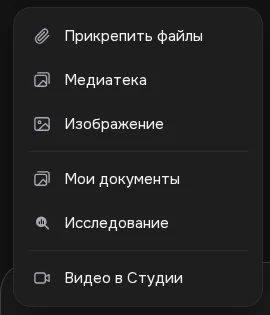
A menu opens: Attach files, Media library, Image, My documents, Research, Video in Studio.
- Choose a source
Attach files: a file from your device. Media library: your uploads and previously created images (the “Library” and “Uploads” tabs), with the Attach button. My documents: files from your document library.
- Or drag a file in
Drop a file into the chat window and the hint “Drop files here” appears in the field. Attached files are shown as chips above the field and can be removed with the cross.
- Write what to do with the file
For example: “Summarize this PDF in five points” or “What is in the photo?”.
The file picker accepts images (including HEIC from iPhone), audio and video, PDF, text files (txt, md, csv, json, xml), Office documents (doc, docx, xls, xlsx, ppt, pptx, odt and others), Apple files (pages, numbers, key), source code and zip archives.
The size limits the site checks before uploading: images up to 50 MB, documents up to 100 MB, audio, video and other files up to 1024 MB. Heavy files are uploaded in parts automatically.
If a document is very long (more than about 50 thousand characters), the model at first sees only its beginning. The assistant finds the right place by searching the document: the processing price is named in advance, and it asks for your consent. Repeated questions about the same file are free. Details are on the page about big files.
3Web search
The main chat has no separate switch: the assistant decides on its own that a question needs fresh data (news, prices, releases, documentation), searches the web and answers from what it finds. It gives sources as links in the text. During the answer you will see the label “Searching the web”. For one of your questions, the assistant makes up to four search queries.
To make sure the assistant searches, ask for it directly: “Find the latest news about … on the internet and give links”. For questions about Gibrid itself (plans, features), it answers from its own data, without searching.
In the “Models” section, search is turned on manually: open “+” and tick the Web search item; a Search chip appears above the field.
For hard questions that need an overview of many sources, the “+” menu has Research: the assistant searches several sub-questions, reads up to 10 pages and writes a report with [n] numbers and a list of sources. The price is shown before sending and capped at 20 G (the chip “Research · ≈ N G, at most 20 G”). More in research.
4Links to pages
Paste a link and write what to do with it: “what is this article about”, “a summary of this link”, “what is on this page”. The assistant opens the page, reads its text and answers from it; the page stays under the answer as a source card. Reading is switched on when the message has a link or the words “site”, “page”, “link”.
When you paste a link, the buttons Read (“Open … and read it”) and Summary (“Summarize the content of …”) appear above the input field: they fill in a ready phrase like “Summarize … in 5 bullet points” and send it right away.
- Per message the assistant reads at most 3 pages, taking up to 12 thousand characters of text from each.
- Only public pages over http and https open. Pages behind a password, internal network addresses, files and media behind a link (PDF, images, video) and pages without text where everything is drawn by scripts cannot be read; the assistant will say so.
- If a page did not open, paste the text you need into the message or attach a file (PDF, txt).
5Memory: “remember” and “forget”
Write “Remember that I am vegan” and the assistant saves the fact to your shared memory and shows a quiet line “Remembered · Open” under the answer. “Forget about veganism” removes the matching entry, and “What do you remember about me?” shows the list. The assistant says “remembered” only after a successful save.
6Voice input
- Click the voice button
When the field is empty, a round Voice input button stands on the right instead of Send. Click it and allow the browser to access the microphone.
- Speak
A window opens with an indicator and the hint “Speak…”, and the text is recognized as you talk. The maximum recording length is 5 minutes.
- Finish recording
Click Done and the text is inserted into the input field (the hint in the window: “Done inserts the text · Cancel discards it”). If there is a pause of about two and a half seconds after your words, the recording ends by itself. Cancel or Esc discards it.
- Check and send
The text goes into the field rather than being sent right away: fix it and press Enter.
In browsers with system speech recognition (Chrome, Edge), words appear immediately; in the others (for example, Safari), the recording is sent to the server and transcribed there. The /voice command in the field also starts dictation.
A full voice conversation is a separate feature: in the web chat it is the headphones icon Voice conversation in the header (see voice conversation), in the mobile apps it is a call (see the page about calls).
7Documents, images and video
The assistant can create files (Word, PDF, Markdown, Excel, PowerPoint) and edit attached ones, draw images and prepare video. These are big topics, with separate school pages: documents, images and video from chat, storyboard and persona.
The assistant doesn't create music and voiceover from chat: it will explain how to do it and send you to Studio (Studio in the side panel).
8Balance, generations and support
- Ask “How many tokens do I have and what plan am I on?” and the assistant will look up the balance, the plan, the payment end date and the number of generations in progress, and answer with exact figures.
- Ask “What did I generate recently?” and it will show recent images, videos and music with links, and say whether a generation has finished.
- If you need help from a person (payment, refund, blocking, personal data), describe the problem and ask it to send a request: the assistant sends it to support, but only with your consent and without promises about timing. The reply arrives in the Support section (More menu). Refund terms: gibrid.ai/refund.
9Scheduled tasks
The Scheduled tasks section is in the side panel: More → Scheduled tasks. The assistant runs a saved request at the set time and sends the reply to a separate chat.
- Create a task
Click New task. Fill in: “Name” (up to 120 characters), “What to do” (up to 4,000 characters; example: “Find the main AI news of the day and summarize it briefly”).
- Choose when to run it
In the “When” field: Once, Every day, On weekdays or Every N hours. The time is counted in your time zone (it is shown in the form).
- Click “Create”
The task appears in the list with the date of the next run. The task's buttons: Run now, Edit, Turn off / Turn on, Open chat, delete.
- Read the result
Each run adds the reply to the task's own chat. “Recent runs” shows the statuses (“Done”, “Error”, “Insufficient funds”) and the cost of the run.
You can do the same in words in the main chat: “Every morning at 9, send me a summary of AI news”. The assistant creates a task only on an explicit request and confirms the schedule.
- No more than 10 tasks can be on, and no more than 50 in the list in total.
- The “every N hours” interval is no more often than once an hour.
- After three errors in a row, a task is turned off; it is also turned off when funds run out.
- A run can search the web and look at the account, but does not create images, video, music or voiceover.
?FAQ
Why doesn't the assistant open my link?
Usually it does: paste the link and write what to do with it. If it did not work, the most common reasons are: the page is behind a password, it is a file (PDF, image, video), the page has no text or loads only through scripts. Then paste the text you need into the message or attach a file. Chat does not take page screenshots.
Can I attach audio or video so the assistant retells it?
You can attach it, but the model in chat doesn't listen to audio or watch video; it will see only the file name. Attach a text transcript.
How much does web search cost?
No separate price for search is shown on screen: the regular message cost is charged. The spending is visible in the “⋯” menu of the answer, if it is known.
What happens if there isn't enough money on the balance to run a task?
The run gets the status “Insufficient funds”, and the task itself turns off with the note “Turned off: insufficient balance”. After topping up, turn it on with the “Turn on” button.
How is “Research” different from regular web search?
Regular search makes up to four queries per message and answers with a short text and links. Research (the “+” menu) splits the question into sub-questions (up to 6), reads up to 10 sources and writes a report with [n] links; it costs more, so the price is shown in advance and capped at 20 G.
Can I connect Google Calendar or Drive to the chat?
Not available yet: the connection is prepared but not switched on, so the assistant does not read your calendar or Drive. For it to take a schedule or a document into account, paste the text into the message or attach a file.
Related
Your first conversation in Gibrid chat
Chat is Gibrid's main screen: one input field, with models like GPT, Claude and Gemini behind it. Here is how…
Read more →Research in Gibrid chat: a report from ten sources
When you need not a quick “google it” but a market overview, a comparison of services or an analysis of a…
Read more →Documents: ask for a file, download a reply, find it in the library
Gibrid chat can deliver not only text but also ready-made files: write what you need and get Word, PDF or…
Read more →Memory and a soul's “lessons”: what the AI remembers about you
Gibrid can remember stable facts about you across different chats (name, profession, preferences) to answer…
Read more →Voice conversation in the Gibrid web chat
The web version of Gibrid has a headphones button: click it, speak, and the assistant answers out loud. No…
Read more →