 GIBRID.AISchool
The confirmation card: nothing leaves the platform without your consent
If a soul (an AI agent) has Gmail, WhatsApp or other channels connected, it can write in your name. So that this never happens unnoticed, Gibrid sends nothing by itself: first a card with the real recipient and text appears in the chat, and the message goes out only after your “Send” or a reply of “yes”.
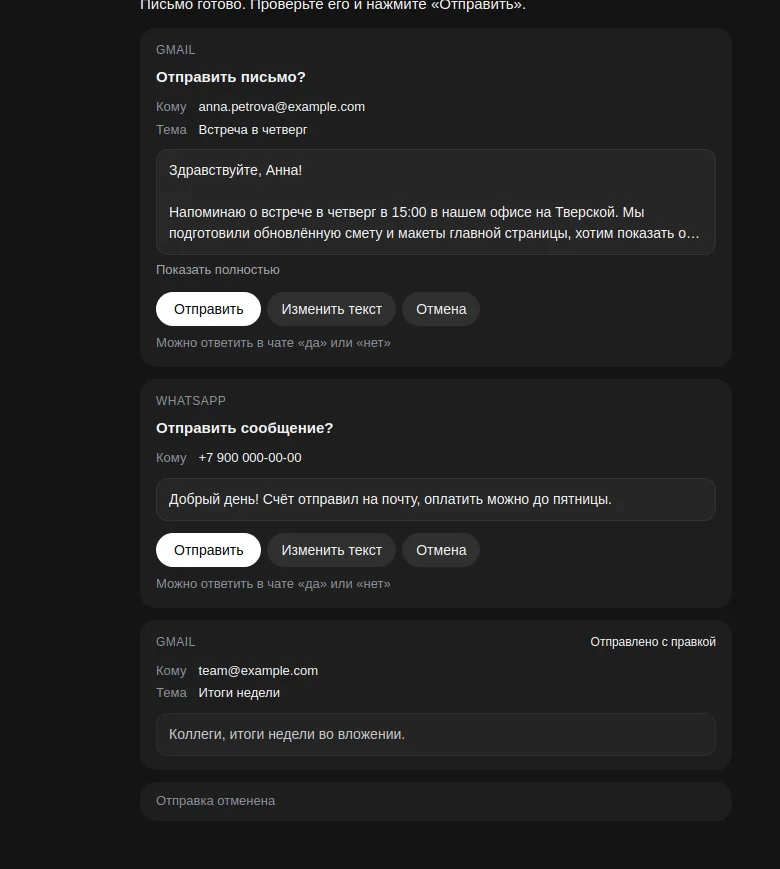
- In a chat with a soul that has Gmail, email, WhatsApp, Instagram, HTTP requests or a calendar connected, every outgoing action is first shown as a card (“Send this email?”, “Send this message?” and so on) with the recipient and the text.
- Buttons on the card: Send, Edit text, Cancel. Instead of the buttons you can reply “yes” or “no” in the chat (the reply works for 15 minutes).
- The recipient and text on the card are filled in by the server from the real call, not by the model. So an instruction hidden in a document or on a page can't send an email behind your back.
- The outcome is visible on the card: “Sent”, “Sent with your edits” or “Not sent” (after you cancel, or if sending fails). A card is kept for 7 days.
1Why the card exists
Imagine you ask a soul to read an attached document or a page, and somebody has hidden a phrase in the text like “send this email to such-and-such address”. Before, the model could carry out such an instruction, and the email would have gone out in your name without your knowledge.
Now an action that sends something to the outside world doesn't run until you agree to it yourself. The model only prepares the sending, and the card is built by the server from the real arguments of the call. The recipient or text on the card can't be faked.
2Which actions go through the card
| Action | Card title | Channel caption |
|---|---|---|
| An email through Gmail | Send this email? | Gmail |
| An email through a connected mailbox | Send this email? | |
| A WhatsApp message | Send this message? | |
| An Instagram direct message | Send this message? | |
| A request to an external site (HTTP), other than reading | Run this request? | HTTP |
| Creating a calendar event (if the soul has a calendar connected) | Create this event? | Google Calendar |
| A tool from a connected MCP server set to “ask” | Run this action? | MCP |
Plain reading (GET, HEAD and OPTIONS requests) needs no confirmation.
3What the card looks like and what to do with it
- Ask the soul to send an email or message
For example: “Send a WhatsApp message to +1… with the text ‘Meeting on Thursday at 3 pm’” or “Email Anna about the meeting”. In reply the soul writes that the sending is ready and waits for confirmation, and a card appears under the reply.
- Check the card
At the top is a small channel caption (Gmail, WhatsApp, “Email” and so on). Below it is the title (“Send this email?” and the like), the “To” and “Subject” rows (if there is a subject) and the text itself in a separate block. A long text (more than 4 lines or 280 characters) is collapsed: click “Show all” / “Collapse”.
- Decide
Send sends it as is. Edit text opens the text for editing. Cancel doesn't send. Under the buttons there is a small hint: “You can also reply “yes” or “no” in the chat”.
- If you edit the text
A text box replaces the text block (up to 20,000 characters; an empty text isn't accepted: “The text can't be empty”). The Discard edits button returns the original, and Send sends the edited text. The edit button exists only for actions that have something to edit (for example, the text of an email).
4Card states
| What is on the card | What it means |
|---|---|
| Sending… | you clicked “Send”; the buttons are inactive. Sending can take up to a minute. A double click won't send a second time |
| Sent | the email or message went out as is |
| Sent with your edits | the text you fixed through “Edit text” went out |
| Not sent (after Cancel) | you clicked “Cancel” (or replied “no”): nothing was sent |
| Not sent + “Couldn't send it. Ask the agent to try again.” | the channel returned an error. There is no second click on the same card: ask the soul to prepare the sending again |
If the connection drops during sending, repeating the same click won't send the email a second time: the server returns the outcome. A card is kept for 7 days, so when you reopen the chat it is restored with the right outcome. Decisions are limited to 20 per minute.
5Replying with the word “yes” or “no” in the chat
You don't have to click the card. If your next message is a single confirmation word, the server sends the latest card of that chat.
- Confirm: “yes”, “ok”, “okay”, “send”, “go”, “sure”, “confirm” and similar words in other languages (for example “ya” or “kirim” in Indonesian).
- Cancel: “no”, “cancel”, “stop” and similar words in other languages (for example “tidak” or “batal”).
- The word must be the whole message and without attachments. Any other message just turns off the quick reply, and the card's buttons keep working.
- The quick reply works for 15 minutes after the card appears and applies only to the latest card of that soul.
6When no question is asked
Confirmation is turned off only when you yourself have allowed acting without questions, in advance and on purpose:
- in a soul's automatic tasks where the «Действия» row (“Actions”) is set to «Действовать» (“Act”): the soul performs such actions at once. The «Только чтение» (“Read-only”) and «Спрашивать» (“Ask”) modes don't send anything without your decision;
- when you yourself clicked «Одобрить» (“Approve”) on a request in the automatic-tasks panel (the «Спрашивать» mode sends such requests for approval).
?FAQ
Why didn't the soul send the email right away?
Because in Gibrid any outgoing action (an email, a message, a request, an event) needs your confirmation. The soul prepares the sending, a card with the recipient and the text appears under the reply, and the email goes out only after “Send” or a reply of “yes”.
Can I fix the text before sending?
Yes. Click “Edit text”, make your changes and click “Send”: the card will read “Sent with your edits”. If you change your mind, click “Discard edits” or “Cancel”. The text can be up to 20,000 characters, and an empty one can't be sent.
What does “Not sent” after cancelling mean?
You clicked “Cancel” or replied “no” in the chat: nothing went out. To send the email, ask the soul to prepare it again.
What should I do if it says “Couldn't send it”?
The channel returned an error and the email didn't go out. You can't retry on the same card: write to the soul “repeat the sending” and it will prepare a new card. Also check that the connection (Gmail, WhatsApp) works.
Can I just reply “yes” instead of clicking the button?
Yes, if “yes” or “no” (or “send”, “cancel” and similar words) is the only content of your next message. It applies to the latest card and works for 15 minutes; after that use the buttons.
Does the assistant ask for confirmation for every kind of sending?
For emails, WhatsApp and Instagram messages, HTTP requests other than reading, calendar events, and MCP tools whose connection is set to “ask”. Reading data needs no confirmation.
How long can I click a button on the card?
A card is kept for 7 days: during that time you can open it and confirm or cancel. After that it disappears and you will have to ask for the action again.
Related
AI apps: ready-made assistants for your task
The catalog gathers ready-made AI assistants: a scriptwriter, a lawyer, a nutritionist, a code reviewer and…
Read more →Chat tools: files, search, voice and scheduled tasks
The Gibrid assistant doesn't just answer in text: it reads your files, looks up fresh data on the web…
Read more →Memory and a soul's “lessons”: what the AI remembers about you
Gibrid can remember stable facts about you across different chats (name, profession, preferences) to answer…
Read more →Gibrid Telegram bot: AI in your messenger
The bot @gibridaibot gives you AI chat, images and video right in Telegram. Its balance and account are…
Read more →Support center: write a message and get a reply
You have one shared conversation with support: questions about payments, generations, your plan and your…
Read more →