 GIBRID.AISchool
Links: sharing a chat or a soul safely
You can show a good conversation to others by link: the person opens a read-only page and sees a snapshot of the conversation. Here is how to create the link, what goes into it, how to turn it off, and why Gibrid has no “links with a question”.
- The “⋯” menu in the header of a saved chat → “Share” → “Create link”.
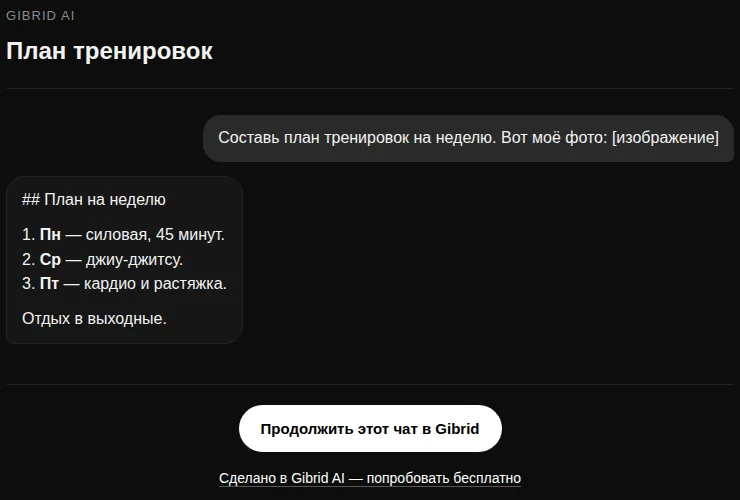
- The link opens a read-only snapshot in the language of the conversation: anyone who has the link will see it, without your name and without attachments.
- New messages don't enter the snapshot until you click “Update snapshot”. “Disable link” closes access.
- At the bottom of the page the reader has a “Continue this chat in Gibrid” button: after signing in they get a copy of the conversation text in their own account.
- The web chat has no link that fills a question into the input field.
1Share a chat
- Open the chat you need
You can share only a chat that is already saved in your account (it has an address like ?c=…). A new empty chat and the “Gibrid News” news channel can't be shared; in an empty chat the server replies “There is nothing to share in this chat yet”. A temporary chat is not saved, so it cannot be shared.
- Click “⋯” in the chat header
On the right of the header there is a “⋯” icon (More). The menu has one item: Share.
- Create a link
The window is called “Share chat” and explains: “The link opens a snapshot of this chat's current messages, read-only. Anyone with the link will see it. New messages won't enter the snapshot until you update it”. Click Create link.
- Copy and send
The Copy button puts the address on the clipboard (“Link copied”). The window shows when the snapshot was made: “Snapshot from …”.
After that the link has two actions: Update snapshot: the address stays the same, but the current conversation is shown; Disable link: it stops opening. If there are too many links, the server will ask you to delete unneeded ones (the overall limit is 300 links per account).
2What others see and how it is protected
- Only messages are visible: yours and the assistant's, with time. The author's name and email, memory, attachments, service data and tokens do not enter the snapshot.
- Images from your messages (what you attached) are replaced on the page with the word “[image]”; images drawn by the assistant stay.
- The snapshot includes no more than 500 messages; very long messages are truncated.
- The page opens without signing in and is read-only; you can't write into your chat through it.
- The page is closed to search engines (a “noindex” tag), doesn't pass the referrer address, and loading external resources on it is forbidden, except images from Gibrid sites. In messengers the link shows a preview: the chat title and the beginning of the assistant's first answer.
3The “Continue this chat in Gibrid” button
At the bottom of the public page there is the Continue this chat in Gibrid button and below it the link “Made with Gibrid AI — try it free”. This way a reader can not only look at the conversation but also continue it for themselves.
- The reader clicks the button
If they are not signed in to Gibrid, they are sent to the sign-in page and brought back to the copying after signing in.
- A copy is created
A new chat with the same title appears in the reader's account: a copy of only the snapshot's message text, without attachments. Your chat and your link do not change.
- Clicking again
Leads to the same copy instead of creating a new one each time.
The page language is chosen from the language of the conversation itself: Russian, English, Spanish, Indonesian or Arabic (Arabic reads right to left); the captions of the button and the link change with it, for example “Continue this chat in Gibrid”.
4A link “with a ready question” (?ask=)
Links like gibrid.ai/chat?ask=… are not intended for users. The ask parameter is used inside the chat: the assistant hides in it the reply options that are shown as buttons (for example, choosing a persona). If you make such a link by hand, the text won't be filled into the input field.
If you need a ready-made question template, share it as text or create a project: the project page has an “Ask about the project …” field, and the Open a new chat with this question button opens a new project chat with the text in the input field. Chat addresses (?c=…) and project addresses (?p=…) open only for the account owner; other people don't need them, because there is the snapshot for them.
5Share a soul
Your own soul has a separate “Share soul” window: Create public link. After creation, the “Public link” panel shows “Active — N views” and the settings:
- “What guests can do”: View only (guests see a preview of the soul, the chat is hidden) or Can chat (3 messages per guest);
- password: “Set” / “Change” / delete; without a password the chat is open, with one only those who know it can get in;
- “Show in search”: the page will appear in search engines; pages with a password don't appear in search;
- Revoke link: but old links in messengers may still open from cache for some time.
Any line from a soul that you like can be shown as a picture: Share the line, then Download PNG or Copy link.
?FAQ
Who will see my name and email?
Nobody: the snapshot includes only the role, text and time of messages. The account's name and email are not added and are not shown on the page, but if you wrote them in the chat yourself, they will be visible. Images you attached are replaced on the page with the word “[image]”.
Can I share only part of a chat?
No, the snapshot is built from the whole chat. To share an excerpt, copy what you need into a new chat and share that.
What happens after “Disable link”?
The link stops opening. You can later create a new one with the “Create link” button.
Can I open someone else's chat by link and continue it?
The snapshot page itself is read-only, but it has a “Continue this chat in Gibrid” button: after signing in to your own account you get a copy of the conversation text as a new chat and can keep writing. The author's original chat does not change.
Related
Your first conversation in Gibrid chat
Chat is Gibrid's main screen: one input field, with models like GPT, Claude and Gemini behind it. Here is how…
Read more →Temporary chat and memory: what is remembered and what isn't
Sometimes you want to ask something personal so that it doesn't end up in your history or in the assistant's…
Read more →Memory and a soul's “lessons”: what the AI remembers about you
Gibrid can remember stable facts about you across different chats (name, profession, preferences) to answer…
Read more →Projects: chats, instructions and files for one job
A project brings together chats, tasks and files for one job. The Gibrid assistant takes its instructions and…
Read more →