 GIBRID.AISchool
Search chats and messages: from a word to the exact message
“Where did we discuss this?” Search now answers that question. It looks not only at chat titles but at the text of all your messages, understands different forms of a word and opens the chat right on the message it found, highlighting it.
- Click Search in the side panel or press ⌘K (Mac) / Ctrl+K (Windows and Linux). A window opens with “Search: chats · messages · agents · commands…”.
- Type three or more characters: below, besides chats and souls, messages appear with a piece of text around the match. The chat-list search field has the same “In messages” block.
- Word endings are trimmed: “machines” finds “machine” and “machines”. Search covers all your chats, archived ones included.
- Click a result: the chat opens on that message (?m= appears in the address), the feed scrolls to it and highlights it.
1Where to search
- Open search in any way
Click Search in the side panel on the left; or press ⌘K / Ctrl+K (works from any chat page; ⌘P / Ctrl+P also works). A window opens with the field “Search: chats · messages · agents · commands…”. Close it with Esc.
- Type a query
While the query is empty, the list shows your chats, souls, agents and commands (for example, “New chat”). Type: the list narrows by titles, and from three characters, found messages are added after a fraction of a second.
- Choose a result
The ↑↓ arrows move the selection; Enter or a click opens it. Each result has a type label on the right: “Chat”, “Soul”, “Agent”, “Group”, “Command” or “Message”.
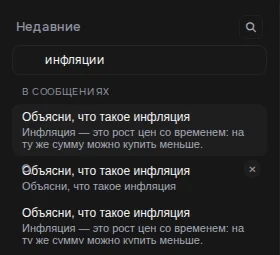
There is a second entry point: the search field right in the chat list. In the side panel, above the “Recent” list, click the magnifier icon: a “Search chats” line appears. The list below filters by titles, and under the line, from three characters, an “In messages” block appears with the fragments found.
2How message search works
- Across the whole history. It searches the text of all your saved chats: with the assistant, with souls, in the “Models” section, in groups. Temporary chats are not saved, so they aren't in search.
- By word form. Endings are trimmed: “machines” finds “machine” and “machines”. Up to six words of the query are used, and words shorter than three characters are skipped (they go to a plain substring search). Endings are trimmed for Russian and English words; in other languages a word is matched by its beginning, so type its stem.
- By relevance. First, messages containing all words of the query are searched, then those containing at least one. The best matches come first, and among equals the fresher ones are higher.
- A fragment around the match. A piece of text around the word found is shown (about 110 characters either side), not the start of the message, together with the chat title.
- How many are shown. Up to 8 found messages in the side panel and up to 10 in the ⌘K window.
3Going straight to the message
Clicking a found message opens its chat and scrolls to that message by itself. If the message is older than what is loaded on the screen, the feed loads earlier parts by itself and scrolls up until it finds it; then the message is highlighted for about 2–3 seconds. While the jump is happening, the address bar shows a parameter ?m=message-number, and then it disappears.
Separately, there is search inside an already open chat: ⌘F / Ctrl+F in a chat opens a search line for its messages instead of the browser's find.
4The chat archive
To remove a chat from the main list without deleting it, open the chat's actions menu → Archive. An “Archived” block appears at the bottom of the list; you can bring a chat back with Unarchive. More about history and pinned chats on the page about your first chat.
- Message search doesn't exclude the archive: a message from an archived chat will also show up in the results.
- The search field above the chat list filters the list by titles.
?FAQ
How do I find an old message in Gibrid?
Click “Search” in the side panel or press ⌘K / Ctrl+K, type three or more characters of a word from the message you need and choose the result labelled “Message”. The chat opens on that message.
Does search find different forms of a word?
Yes. Endings are trimmed, so “machines” finds “machine” and “machines”. But it is a rough trimming to a word stem without a dictionary, so rare forms may not be found: try the root of the word.
Does it search archived chats and chats with souls?
Yes: the query goes through all your saved chats, archived ones and chats with souls included. Only temporary chats won't be found, because they aren't saved.
Why does search show nothing for a short word?
The messages block switches on from three characters. Words shorter than three characters in a query are skipped when searching by stems. Add one more word or type a longer one.
Which keyboard shortcut opens search?
⌘K on Mac or Ctrl+K on Windows and Linux. The older ⌘P / Ctrl+P also works. Inside an open chat, ⌘F / Ctrl+F searches the messages of that chat. You can close the search window with Esc.
How do I bring a chat back from the archive?
Open the “Archived” block at the bottom of the chat list, open the chat's actions menu and click “Unarchive”.
Related
Your first conversation in Gibrid chat
Chat is Gibrid's main screen: one input field, with models like GPT, Claude and Gemini behind it. Here is how…
Read more →Memory and a soul's “lessons”: what the AI remembers about you
Gibrid can remember stable facts about you across different chats (name, profession, preferences) to answer…
Read more →Temporary chat and memory: what is remembered and what isn't
Sometimes you want to ask something personal so that it doesn't end up in your history or in the assistant's…
Read more →Links: sharing a chat or a soul safely
You can show a good conversation to others by link: the person opens a read-only page and sees a snapshot of…
Read more →Projects: chats, instructions and files for one job
A project brings together chats, tasks and files for one job. The Gibrid assistant takes its instructions and…
Read more →