 GIBRID.AISchool
AI calls: talking by voice in the app and on the web
You can talk instead of typing: in the Gibrid mobile apps it is a call, like a phone conversation, and in the web chat gibrid.ai/chat it is a separate “Voice conversation” with the assistant. The transcript stays in the chat, so you can continue the conversation in text.
- Calls to a soul, a model or a group are in the Gibrid apps (iPhone, iPad, Mac, Android); the web version has no such call button.
- The web chat gibrid.ai/chat has something different: the headphones icon “Voice conversation” in the header of the main chat: you speak, the assistant answers by voice; the price of a minute is shown before you start.
- To start a call in the app: the green phone button in the chat header, the “Call” item in the menu of the last reply, or the “Call” button on a soul card.
- Voices in a call are split into free and paid; the price of a paid voice is shown next to it. In the web conversation, voicing with the standard voice is free.
- You can interrupt the AI by voice, and at the end the conversation lands in the chat: in the app as a “Call ended · …” line, on the web as lines of the feed.
1Where calls are available
Voice calls are built into the Gibrid apps: iPhone and iPad, Mac and Android. The browser has no such call (with a voice choice, groups and souls); there are two paths instead. The first is to dictate a question with the Voice input button and listen to the answer with the Read aloud button in the “⋯” menu under the reply. The second is the “Voice conversation” in the main chat, described below.
2Voice conversation in the web chat
In the main chat gibrid.ai/chat there is a headphones icon Voice conversation in the header. It opens a panel where you speak and the Gibrid assistant answers by voice. The feed and cards stay on screen: each of your phrases and each answer is an ordinary message of this same chat.
- Open the main chat
Go to gibrid.ai/chat and sign in. The headphones icon is in the header on the right, next to the temporary chat button.
- Click “Voice conversation”
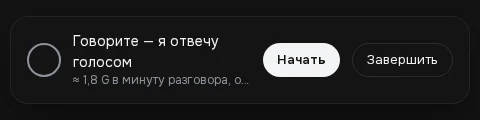
A panel opens: “Speak — I will answer by voice”. Above the buttons you see the price: “≈ N G per minute, the standard voice is free”.
- Click “Start” and allow the microphone
The browser asks for microphone access. If there is none, the panel says “No microphone access”.
- Speak
Statuses: “Listening…”, “Hearing you…”, “Thinking…”, “Answering — you can interrupt”. The end of a phrase is detected by a pause (about a second), the phrase is transcribed and goes to the chat. If you start talking during the answer, the voice stops and the assistant listens again.
- Click “End”
The panel closes and the microphone turns off; the whole conversation stays in the chat as text.
| Aspect | App call | Voice conversation on the web |
|---|---|---|
| Where | iPhone, iPad, Mac, Android | gibrid.ai/chat, main chat only |
| With whom | A soul, a model, an agent group | The Gibrid assistant (a fast model, conversational style) |
| Voice | A catalog: free and paid, chosen for each soul | The standard call voice, no choice; free |
| Price | Paid voices cost the price shown next to the voice | ≈ N G per minute (recognition and replies), shown before starting |
| Interrupt | By voice or with the “Interrupt” button | By voice: speak during the answer |
| Afterwards | A “Call ended · m:ss” line and the replies | Ordinary messages in the chat feed |
3How to start a call
- Open the chat you need
You can call in a chat with a soul (agent), in a chat with a model, and in an agent group.
- Tap the call button
There is a green phone button in the chat header. Two more ways: the Call item in the menu of the last reply, or the Call button on a soul card.
- Allow the microphone
On the first call, the app asks for access to the microphone and speech recognition. Without permission, a hint appears: “No microphone access. Turn it on in Settings”.
- Speak
The screen shows statuses: “Connecting…”, “Listening…” or “Speak”, then “Thinking…” and “Speaking…”. When the AI is answering, you can simply start talking and it will stop.
In a group, the call runs in the “Round table” format: each participant speaks in their own voice. Only one call can run at a time; if you start a second one, the app says: “A call is already in progress. End it first”.
4Controls during a call
- Interrupt (hint “Stops the answer so you can speak”): interrupt the AI's reply with a button. The “Can interrupt by voice” item means the same happens when you start speaking.
- Mute / Unmute: turn the microphone off and on. If you start typing, the microphone pauses (“Microphone paused: you're typing”).
- Speaker: switch between speakerphone and the earpiece.
- Minimize: collapse the call into a floating panel so you can keep using the app.
- Conversation transcript: the text of the lines in real time.
- Switch to text chat (“Continue the conversation by typing”): return to the text conversation without losing context.
- End call: hang up.
5Choosing a voice
Open the call settings and tap Call voice (or Change agent voice). The catalog is divided into sections:
- “Favorites”: voices you marked with the “Add to favorites” button;
- “Free”: they don't charge your balance;
- “Paid”: labeled “charged to your balance”; next to the voice there is a “paid” mark, an “economy” mode and a price like ≈ N G / 1000;
- the Search voice field and the Preview voice button for checking.
By default the voice is chosen by name and character (male or female), and if you pick a voice manually for a specific soul, it is remembered. During a call, paid voices are spoken by the fast streaming ElevenLabs Flash v2.5 engine (about ⚡4 per 1,000 characters); the expressive Eleven v3 mode has no effect on a call: the server ignores it. The conversation language is chosen in the “Language” block (Russian or English).
6After the call
At the end, a service line “Call ended · m:ss” is added to the chat, and the lines go into the conversation. By tapping this line or the Call menu, you can start a new call. If the connection drops, the screen offers Call again or reconnecting; on an error it says “Call failed” or “Couldn't start the call. Check your connection and microphone access”.
7What costs money
?FAQ
Is there a voice conversation in the browser?
There is no call to a soul or a group in the browser as in the app. But the main chat gibrid.ai/chat has the headphones icon “Voice conversation”: you speak, the assistant answers by voice. You can also dictate with the “Voice input” button and listen to the answer with the “Read aloud” button. For a call to a soul, install the app.
Can I record a call?
The conversation transcript is saved in the chat as lines, not as audio. There is no audio recording of calls in the interface.
How do I change the voice for a specific soul?
In the call settings, choose Call voice, find a voice and tap it. The choice is remembered for that soul.
What if the AI can't hear me?
Check the microphone and speech recognition permissions in your system settings, as well as the internet and the device language; the app suggests these checks on an error.
How much does a minute of the web conversation cost?
The panel shows the price before you click “Start”: at the check on 16.10.2026 it was ≈ 1.8 G per minute (about three replies of a fast model plus speech recognition). Voicing with the standard voice is free. The exact figure depends on the plan and may change.
Related
Voice conversation in the Gibrid web chat
The web version of Gibrid has a headphones button: click it, speak, and the assistant answers out loud. No…
Read more →Chat tools: files, search, voice and scheduled tasks
The Gibrid assistant doesn't just answer in text: it reads your files, looks up fresh data on the web…
Read more →Memory and a soul's “lessons”: what the AI remembers about you
Gibrid can remember stable facts about you across different chats (name, profession, preferences) to answer…
Read more →Your first conversation in Gibrid chat
Chat is Gibrid's main screen: one input field, with models like GPT, Claude and Gemini behind it. Here is how…
Read more →