 GIBRID.AISchool
Voice conversation in the web chat: you speak, the assistant answers aloud
The web version of Gibrid has a headphones button: click it, speak, and the assistant answers out loud. No typing the question and reading the answer. Here: how to start a conversation, what happens between your phrase and the reply, what it costs and how it differs from a call in the mobile apps.
- Open gibrid.ai/chat, sign in and click the headphones button in the chat header (hint “Voice conversation”) → Start. The browser will ask for microphone permission.
- How it works: you speak → a pause in speech marks the end of the phrase → the phrase is recognized → a fast model answers briefly → the answer is read aloud in the standard voice, which is free. Start speaking during the answer and the voice stops.
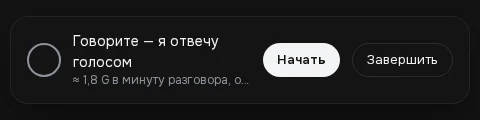
- The price is shown before you start: “≈ N G per minute, the standard voice is free”. By the server's formula N is from about 1.6 to about 2.6 G depending on your plan (1.8 G in the screenshot).
- You need to be signed in, have a positive balance, a microphone and the browser's permission. Replies stay in the chat as text.
- This is not a call from the app: there is one voice with no choice and no group call. Calls with a choice of voice are in the apps.
1How to start a conversation
- Open the main chat and sign in
The voice conversation works in the assistant chat at gibrid.ai/chat and only for signed-in accounts.
- Click the headphones button
It is at the top right of the chat header, next to the Temporary chat button. On hover the caption is “Voice conversation”. A panel appears at the bottom of the screen.
- Look at the panel before you start
It says “Speak — I will answer by voice” and shows the price: “≈ N G per minute, the standard voice is free”. The Start and End buttons are there too.
- Click “Start” and allow the microphone
The browser shows a microphone access request. If you refuse, the panel says “No microphone access”: allow access in the site settings of your browser and click “Start” again.
- Speak
Panel statuses: “Listening…”, “Hearing you…”, “Thinking…”, “Answering — you can interrupt”. When you are done, click End: the microphone turns off and the panel closes.
2What happens between your phrase and the reply
- The pause. The microphone listens all the time. Recording begins when you start speaking, and after about 0.9 seconds of silence the phrase counts as finished. One phrase lasts no longer than 30 seconds: after that it is sent anyway.
- Recognition. The recording goes to speech recognition, the same route as the voice input button. If the text isn't recognized or the recording is too short, the panel simply keeps listening.
- The model's reply. The recognized text goes into this same chat as an ordinary message. In Auto mode a fast model answers (if no file is attached), in the conversational call style: one to three short phrases, with no lists, headings, links or code. If you chose a model by hand, that model answers.
- Reading aloud. When the reply is fully ready, it is read in the standard call voice (up to 1,500 characters; code, links and formatting are not read). This voice is free.
- Interrupting. Speak while the assistant is answering: the voice stops at once and the panel listens to you.
- The feed stays. Every message and reply is visible in the chat as text, and images and documents appear as cards, as in a normal conversation.
3What a minute of conversation costs
The number on the panel is calculated in advance. It includes about three replies of the fast model per minute and speech recognition. Reading aloud in the standard voice costs nothing. The exact number depends on your plan: the lower the plan's markup, the smaller the amount.
| Plan | ≈ G per minute of conversation |
|---|---|
| No plan (top-ups only) | ≈ 2.6 |
| Basic | ≈ 2.2 |
| Pro | ≈ 1.9 |
| VIP (and above) | ≈ 1.8 |
| Enterprise | ≈ 1.6 |
4What you need, and how to speak so everything works
- Sign-in and balance. The conversation isn't available to guests; speech recognition needs a positive balance.
- Microphone and browser. You need a modern browser that can record sound and permission for the microphone for gibrid.ai.
- Headphones. It is better to speak with headphones: if the sound of the reply gets into the microphone, the panel may take it for your speech and interrupt the reply.
- Quiet around you. The start of speech is detected by loudness, so loud noise nearby can start a recording for nothing.
- Don't pause for long in the middle of a phrase. A second of silence is the end of the phrase: recognition starts without waiting for the rest.
5What the voice conversation on the website doesn't have
- There is no choice of voice: the assistant answers with one standard free voice.
- The reply is read aloud after it is fully ready, not as it is typed, so there is a delay between your phrase and the voice.
- Code, links, lists and tables are not read aloud; you can read them in the chat feed.
- The conversation works only in the main assistant chat. Chats with souls, groups and the “Models” section have no such button.
- It is not a call: there are no “Interrupt” and “Mute” buttons as in the app; you interrupt by voice.
6How it differs from a call in the app
| Web chat (this page) | Call in the app | |
|---|---|---|
| Where | gibrid.ai/chat, the main chat | iPhone, iPad, Mac, Android |
| With whom | the Gibrid assistant | a soul, a model or a group of agents |
| Voice | one standard free voice | a catalogue of free and paid voices, voice choice |
| Interrupting | by voice | by voice or with a button |
| Price | replies as ordinary messages, reading aloud is free | free voices aren't charged, paid ones are charged in G |
More on calls with a choice of voice on the page about calls in the app.
?FAQ
Where is the voice conversation button in Gibrid?
In the header of the main chat gibrid.ai/chat, at the top right: a button with a headphones icon, captioned “Voice conversation”. Click it, then “Start”.
How much does a voice conversation cost?
The panel shows the price before you start: “≈ N G per minute, the standard voice is free”. By the server's formula that is from about 1.6 to about 2.6 G per minute depending on your plan. Reading aloud isn't charged, and replies are paid for like ordinary chat messages.
Why doesn't the assistant hear me, or why does it say “No microphone access”?
The browser didn't allow the microphone. Allow it for the gibrid.ai site in your browser settings and click “Start” again. Also check that your balance is positive: without it recognition doesn't work.
How do I interrupt the assistant?
Just start speaking: while it is reading aloud, the voice stops at once and the panel starts listening to your phrase. Headphones are better, so the microphone doesn't hear the speakers.
Can I choose the assistant's voice?
Not in the web conversation: it answers with one standard free voice. A choice of voice exists in calls from the Gibrid apps.
Does the text of the conversation stay in the chat?
Yes. Your phrases (as recognized) and the assistant's replies appear in the chat feed as ordinary messages, and images and cards are shown as usual.
How does the voice conversation differ from the voice input button?
Voice input only writes your phrase into the field, and the assistant answers in text. In the voice conversation the microphone listens all the time, the reply is read aloud and you can interrupt it.
Related
AI calls: talking by voice in the app and on the web
You can talk instead of typing: in the Gibrid mobile apps it is a call, like a phone conversation, and in the…
Read more →Auto mode: a fast model for simple things, a strong one for hard ones
A new chat on gibrid.ai/chat starts in Auto: for every message, Gibrid picks the model itself. A greeting, a…
Read more →Chat tools: files, search, voice and scheduled tasks
The Gibrid assistant doesn't just answer in text: it reads your files, looks up fresh data on the web…
Read more →Your first conversation in Gibrid chat
Chat is Gibrid's main screen: one input field, with models like GPT, Claude and Gemini behind it. Here is how…
Read more →Billing, plans and balance: how it works
Gibrid has one balance for everything: chat, images, video, voice and agents. It is spent in ⚡ G-tokens, and…
Read more →