 GIBRID.AISchool
Research: the assistant searches, reads sources and writes a report with links
When you need not a quick “google it” but a market overview, a comparison of services or an analysis of a topic, turn on Research. The assistant splits the topic into sub-questions, finds and reads up to ten pages and writes a structured report in which every fact has a source number. The price is visible in advance and capped at 20 G.
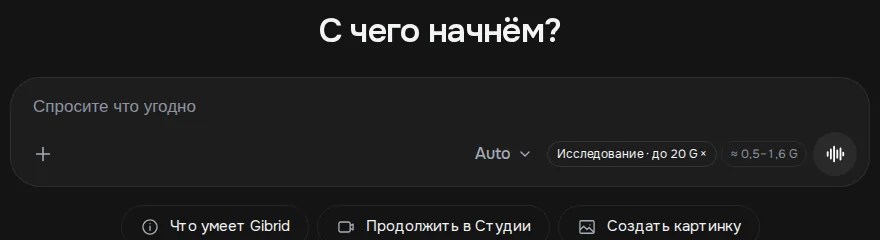
- Click “+” by the input field → Research. A chip “Research · ≈ N G, at most 20 G” appears above the field, and your next message goes as a research request.
- The assistant searches several sub-questions (up to 6), takes up to 10 sources (no more than two from one site), reads them and writes a report with markers [1], [2] and a list of sources at the end.
- The price cap is 20 G (G is the same as the ⚡ token; 1 ⚡ ≈ $0.025). Before the run the chip shows an estimate; in a test, comparing three note-taking apps cost 3.34 G.
- You can remove the chip by clicking it: the message then goes as an ordinary one. After sending, the mode switches itself off: it applies to one message.
1How to turn research on
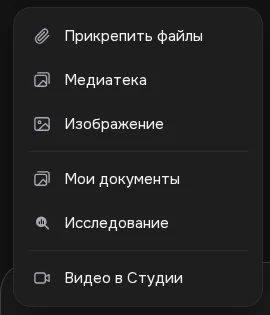
- Click “+” by the input field
In the main chat at gibrid.ai/chat there is a plus on the left of the input field. The menu has Attach files, Media library, Image, My documents, Research and Video in Studio.
- Choose “Research”
The menu closes, and a chip “Research · ≈ N G, at most 20 G” appears in the input area. If the estimate hasn't loaded yet, it will say “Research · up to 20 G”. Hover hint: “Next message: many sources and a cited report. Click to cancel.”
- Write the topic and send
Describe what to find out: “Compare three note-taking apps: prices, platforms, pros and cons”. The more precise the question, the better the report.
- Wait for the report
First the search and page reading go on, then the assistant writes the report. A card with the list of sources stays under the reply.
2What the assistant does
- Sub-questions. The assistant splits the topic into several narrow search queries (no more than six) and searches them at the same time using Brave search.
- Choosing sources. Up to 10 different pages are taken from the results, in turn from each sub-question, to cover different sides of the topic. No more than two from one site.
- Reading. Pages are opened at the same time through a protected loader: only ordinary sites over http and https, internal and local addresses are blocked, every redirect is checked again, and waiting is time-limited. Only text and HTML are read: an excerpt of up to 2,600 characters is taken from each page, no more than 26,000 in total.
- If a page didn't open (it needs a login, the site is closed, it is a file such as a PDF), a short snippet from the search results is used. The assistant is expected to say plainly what the sources don't cover.
- The report. First a short conclusion, then sections. Every fact has a source number in square brackets [1], [2], and at the end there is a “Sources” list with links. In Auto mode a strong model writes the report, and if you chose a model by hand, that model does.
The search and page reading themselves are not charged separately: you pay for the model's work, that is, for reading the excerpts and writing the report. If you need a file, ask after the report: “Put the report into a Word document”. Read about documents on the page about documents in chat.
3What it costs and where the 20 G cap is
The chip shows an estimate before the run. It is calculated for a strong model and includes two rounds of the model's work with a request that holds the excerpts from the sources, plus a report of about 2,800 tokens. Because of the plan's markup the estimate differs from person to person: from about 4.1 to about 7.5 G.
| What | Value |
|---|---|
| Estimate on the chip before the run | ≈ 4.1–7.5 G (depends on the plan) |
| Cap for one research | 20 G |
| A real example (test on 16 October 2026) | “Compare three note-taking apps”: a report on Notion, Obsidian and Evernote with [n] links cost 3.34 G, with an estimate of 7.5 G before the run |
| What is not charged separately | search and page reading |
4How to cancel the mode
- Click the “Research” chip
It is clickable: it has a cross, and on hover the hint says “Click to cancel”.
- Send the message as an ordinary one
The chip disappears and the question goes into the chat without research.
If you have already sent the message, the mode has switched itself off: it applies to one message. To do another research, choose “+” → Research again.
5Limitations
- The report is built only from the pages that could be read. Closed sites, paid articles and pages that need a login or scripts are not read.
- Files (PDFs, documents, archives) behind links are not read: only a short snippet from the search is used.
- No more than ten sources and no more than two per site are taken; an excerpt from a page is short (up to 2,600 characters), so long materials are not read in full.
- It is not a guarantee of truth: check important facts using the links in the source list.
- The mode is available only in the assistant's main chat and only for signed-in accounts.
?FAQ
Where do I turn on “Research” in Gibrid chat?
Click “+” on the left of the input field of the main chat and choose “Research”. A chip “Research · ≈ N G, at most 20 G” appears in the field, and your next message goes as a research request.
How much does research cost?
The estimate on the chip before the run is about 4–7.5 G depending on your plan, and the cap is 20 G. In a test, “compare three note-taking apps” cost 3.34 G. Search and page reading are not charged separately; you pay for the model's work.
How many sources does the assistant use?
Up to 10 pages, no more than two from one site. It searches several sub-questions (up to 6) and reads the pages at the same time.
How can I tell where a fact in the report comes from?
In the text the facts carry numbers [1], [2] and so on. At the bottom there is a “Sources” list with links, and under the reply there is a card with the sources. Open the link you need and check it.
What happens if the price reaches 20 G?
No new round of work starts: the turn stops with the note “Stopped: the research budget (20 G) was reached.” and you get what the assistant managed to prepare.
How do I cancel the mode if I change my mind?
Click the “Research” chip above the input field: it turns off and the message goes as an ordinary one. After sending, the mode switches itself off.
Can I get the report as a file?
Yes. After the report, write, for example: “Put the report into a Word document”. The assistant creates the file; see the page about documents in chat.
Related
Chat tools: files, search, voice and scheduled tasks
The Gibrid assistant doesn't just answer in text: it reads your files, looks up fresh data on the web…
Read more →Auto mode: a fast model for simple things, a strong one for hard ones
A new chat on gibrid.ai/chat starts in Auto: for every message, Gibrid picks the model itself. A greeting, a…
Read more →Documents: ask for a file, download a reply, find it in the library
Gibrid chat can deliver not only text but also ready-made files: write what you need and get Word, PDF or…
Read more →Big files: answers from any page and editing a document in place
Before, the assistant saw only the start of a long document and might not find an answer from the middle or…
Read more →Billing, plans and balance: how it works
Gibrid has one balance for everything: chat, images, video, voice and agents. It is spent in ⚡ G-tokens, and…
Read more →