 GIBRID.AISchool
The “Done” signal: learn about the result without staring at the page
A clip takes from one to several minutes and there is no need to watch the screen all that time. Studio signals by itself when the work is ready: while the tab is hidden it changes the tab's title, if you wish it shows a browser notification and, if you turn it on, sends an email. And the button and the card of a running generation show an honest waiting time.
- While the tab is hidden, the title shows “Done · …”, and if several are ready — “(2) Done · …”.
- The browser notification is turned on once: after your first generation Studio asks with a “Notify me” button in a message (not with a browser pop-up).
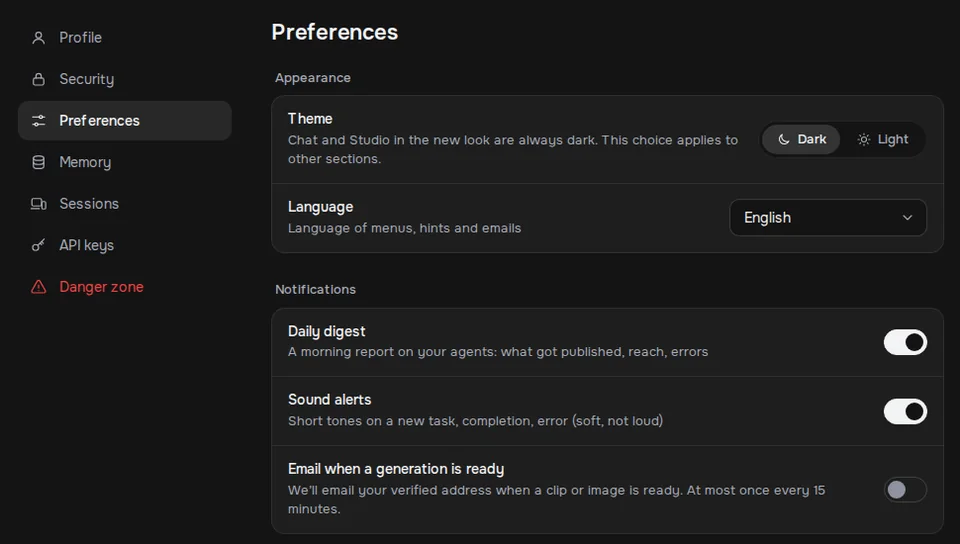
- The email “Email when a generation is ready” is in “Settings → Preferences”, off by default, and arrives at a verified address at most once every 15 minutes.
- The time on the “Generate” button (“~3 min”) and on the card (“Usually ~2 min” → “~1 min left” → “Almost done”) comes from the median over our clips in 30 days, with no made-up percentage bar.
- It works for videos, images, reels from photos, translation and subtitles; the finished work lands in “My generations” anyway.
1The counter in the tab title
When you go to another tab and a generation finishes, Studio changes the name of its tab: “Done · Gibrid …” for one work and “(2) Done · …” for two or more (the number grows with each finished work). As soon as you return to the tab or the window gets focus, the previous name is restored.
This works without any permissions. Nothing needs to be turned on: everyone has the counter, and on a visible page there is none — there the card in the feed is visible anyway.
2The browser notification
- Start your first generation
After you send the first generation a message appears at the bottom of the screen: “Notify you when it’s ready?” with the note “Your browser will show a notification even if you’re on another tab”.
- Press “Notify me”
Only now does the browser show its own permission request. Allow it — “Done — we’ll let you know when a generation finishes” appears.
- Go about your business
When the work is ready and the tab is hidden, a notification arrives titled “Video ready”, “Image ready”, “The reel from photos is ready” or “Subtitles ready”. The text is the start of your description (up to 120 characters), or “Open the Studio to see it” if there is none. A click returns you to the tab.
Studio asks once: after the message has been shown it does not appear again in this browser, even if you closed it. If you changed your mind or denied by accident, turn notifications on or off in the site settings in your browser. If you allowed notifications and later switched them off, the counter in the tab title still works.
3The email “Email when a generation is ready”
If you do not want to keep the tab open, turn the email on. It arrives only if you want it.
- Open settings
In your profile open Settings → the Preferences tab.
- Find the “Notifications” block
It has the switches “Daily digest”, “Sound alerts” and Email when a generation is ready. The caption under the last one: “We’ll email your verified address when a clip or image is ready. At most once every 15 minutes.”
- Turn the switch on
It is off by default. The value is stored on the server, so it applies on any of your devices.
- the email goes only to a verified address: if you have not verified it, there will be no email;
- at most one email per 15 minutes: a series of four clips gives one email, not four;
- the email arrives in the account language: Russian, English, Indonesian, Spanish or Arabic; for other interface languages — in English;
- in the email: “Your generation is ready”, “Your work in Gibrid Studio is ready”, the start of the description, an “Open the Studio” button and a note on why you received it;
- the email is sent about finished clips and images; it does not write about errors.
You can turn the email off with the same switch at any time.
4An honest waiting time
Once a day the server calculates the median “launch → ready” for each model from our finished clips over the last 30 days. A model with fewer than three finished clips gets no time, and nothing is shown. There is no time for images.
| Where | What it says | How it is calculated |
|---|---|---|
| The “Generate” button | “~3 min”; the tooltip “Usually ready in ~3 min · Ctrl+Enter” | The chosen model's median over 30 days. |
| The card of a running generation | “Usually ~2 min” | The first seconds after launch. |
| The same card later | “~1 min left” | The median minus the time already passed, while more than 20 seconds remain. |
| The same card at the end | “Almost done” | Less than 20 seconds remain, or it is past the median but not beyond 1.6 times the median. |
| Longer than usual | “Slower than usual today — the result will appear in your feed” | More than 1.6 times the median has passed. |
The time is rounded: to five seconds (“~50 s”) or to a minute (“~2 min”). There is no percentage bar — it would be made up: the server does not know how much is left and honestly shows only the median. Examples on 15 Oct 2026: Seedance v1.5 Pro about 50 s, Grok Imagine Video 1.5 about 1 min, Kling 3.0 Omni about 2 min, Kling 3.0 about 3 min, Seedance 2.5 about 4 min.
Next to the model name in the picker (“Pick a model for your goal”) the usual time is shown too — more about comparing and choosing.
?FAQ
Why didn't the browser notification arrive?
Check: whether you allowed notifications for the site; whether the Studio tab is open (even in the background); on a phone Chrome often does not show such notifications — then watch the tab title or turn on the email. The browser asks once, so if you refused, turn it on manually in the site settings.
Where do I turn off the ready email?
In “Settings → Preferences” → the “Notifications” block → the “Email when a generation is ready” switch. It is off by default.
Why did no email arrive for the second clip?
Emails go at most once every 15 minutes: a series of clips gives one email. Also the email goes only to a verified address.
Can I turn off the counter in the tab title?
There is no separate switch; it works only while the tab is hidden and disappears as soon as you return.
Why is there no time on the button?
A new model, or images, has no median: at least three finished clips in 30 days are needed. Then no time is shown at all.
Is the waiting time exact?
It is a guide by the median, not a promise. In a busy hour a clip may take longer; then the card honestly says “Slower than usual today — the result will appear in your feed”, and you do not have to wait on the page.
Related
Compare video models and pick the best one for your goal
Studio has dozens of video models and it is hard to know which suits your scene. The compare button runs the…
Read more →Small things that save time and money
Not big features but Studio's small habits: say a prompt by voice, see the exact price before you click, get…
Read more →Account settings: profile, security, memory, keys
All personal options live on one Settings screen: avatar and plan, password and email, theme and language…
Read more →My generations, Favorites and Library
Everything you create in Studio is collected in one place. Here you can find an old work, mark a favorite…
Read more →Animate a photo: from a picture to a clip in one step
Want a still photo to breathe, move its hair, or be circled by a camera, without learning about models and…
Read more →