 GIBRID.AISchool
Compare video models and pick the best one for your goal
Studio has dozens of video models and it is hard to know which suits your scene. The compare button runs the same prompt on two or three models at once and puts the clips side by side in your feed. And the chips “Fast and cheap”, “Best quality”, “With sound”, “Keeps the face” help you choose a model without reading the whole list.
- A “Compare” button (a compare icon with a label; on a phone only the icon, tooltip “Compare on 2–3 models”) sits in the video composer next to the microphone and appears only after your first finished work; while the scene description is empty it is disabled.
- In the “Compare models” window each model shows its price in tokens and its usual time; at the bottom is “Total for the comparison”.
- One comparison is capped at 30 tokens: if the sum is higher, the run button is disabled and it says to pick cheaper models.
- Running is a series of ordinary generations: each has its own hold (the sum is reserved on your balance), the next goes out when the server has accepted the previous; whatever did not go out is not paid for.
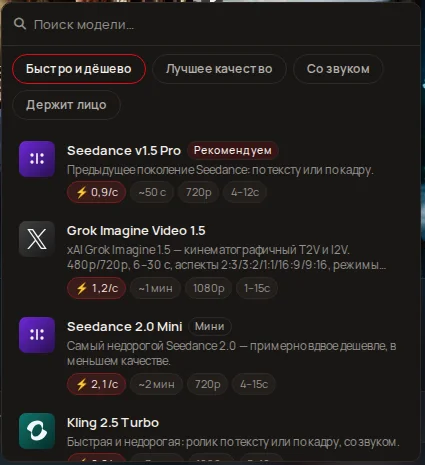
- The model picker has four goal chips; the first model in the list is marked “Recommended”, and the rows show “~2 min” — the median from our clips.
1Where the compare button is
In the video composer, in the row of icons next to the dictation microphone and the prompt-improvement button, there is a Compare button: on a computer it is an icon with the label “Compare”, on a phone only the icon. Hover over it and the tooltip says “Compare on 2–3 models”. Until you describe the scene it is disabled and the tooltip reminds you: “Describe the scene first”.
2How to compare models
- Describe the scene and set the options
Write a prompt, choose duration, quality, sound and, if needed, attach a frame or references. These settings apply equally to all models in the comparison, and the server calculates each one's price from them.
- Press the compare button
The Compare models window opens with the explanation: “The same prompt and settings on 2–3 models. The clips appear side by side in your feed; each model is paid separately.”
- Choose 2–3 models
A short list of options: the composer's current model, the fastest and cheapest ones and the strongest by quality (up to seven rows). A row shows the name, price in tokens and usual time, for example “Seedance v1.5 Pro · 10 tokens · ~50 s”. Clicking selects or clears a row; a fourth cannot be selected. Grey rows labelled “doesn’t fit these settings” do not accept your current parameters (for example the duration or a frame).
- Check the total
At the bottom is Total for the comparison — the sum of the chosen models. If it is above the cap, a red hint appears: “A comparison can’t cost more than 30 tokens — pick cheaper or fewer models”.
- Press “Compare”
The button is called “Compare · 2 models” (or 3) and shows the same sum. The window closes and the models are launched one by one.
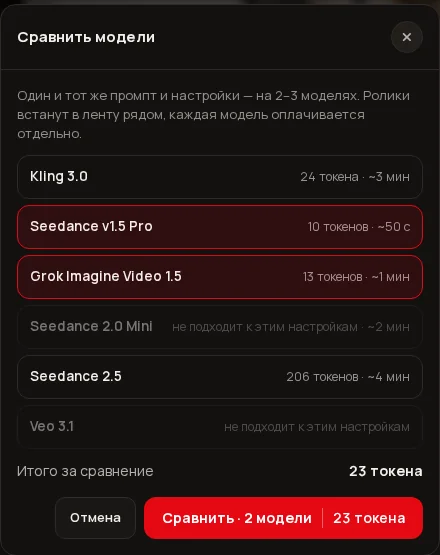
Two models are preselected. If the first two do not fit the cap and you have not clicked anything yet, the window picks the two cheapest suitable ones: the button works right away.
3Price and the 30-token cap
Each model's price comes from the server (a price request for your settings) — it is the same sum an ordinary generation would hold. A time such as “~50 s” or “~3 min” is the median “launch → ready” in our clips over 30 days; if a model has fewer than three finished clips, there is no time.
What happens after the run: Studio puts each model into the composer one by one with your prompt and presses the ordinary “Generate”. The next model goes out only when the server has accepted the previous one. Each launch is a separate generation with its own hold and its own card in the feed, so the clips stand side by side. If sending stops somewhere (not enough balance, a limit was hit), the remaining models are not launched or paid for, and Studio says “Sent N of M — the rest didn’t run and wasn’t charged”.
4Picking a model by goal
Open the model picker in the video composer and you will see four chips above the list. Click one — the list shrinks to the suitable models, and the first gets a Recommended tag. Clicking again clears the chip. While you type in “Search models…” the chips are hidden.
| Chip | What goes into the list | How it is chosen |
|---|---|---|
| Fast and cheap | Inexpensive models ready in a couple of minutes | Only models that had at least 5 finished clips over 30 days and a median of no more than 3 minutes; cheaper goes higher, at equal price faster goes higher. |
| Best quality | The most beautiful picture and motion | A hand-picked order from our measurements: Kling 3.0, Seedance 2.5, Veo 3.1, Kling 3.0 Omni, Wan 3.0; then the rest by number of successful clips. |
| With sound | The model makes sound and voice itself | Models with their own sound, the most proven on our clips first, then the cheapest. |
| Keeps the face | The person from the photo stays recognisable throughout | Models with a reference mode: Seedance 2.5, Kling 3.0 Omni, Vidu Q4, Wan 3.0, Kling 3.0 and other suitable ones. |
Each row shows the price per second of video (“⚡ 0.9/s”) and the usual time (for example “~50 s”). The time tooltip: “Usually ready in this time (our clips over 30 days)”. Service models — lip-sync, clip editing, finishing to 1080p — are not offered in the goals. In the screenshot Grok Imagine Video 1.5 still shows the old duration limits; now it is 6, 10 or 15 s.
?FAQ
Why don't I see the “Compare” button?
It is shown only after your first finished work, and only in video mode. If it is there but grey, the scene is not described (the hint “Describe the scene first”).
How much does a comparison cost and why a cap of 30 tokens?
You pay the sum of the chosen models' prices, shown before launch in the “Total for the comparison” line. The 30-token cap (≈ $0.75) protects from an unexpectedly large bill; above it the run is disabled.
Do I pay for all models even if I don't like the result?
Yes: these are ordinary generations, each with its own price. If one did not reach the server you do not pay for it; if it went and succeeded, it is paid as usual.
Can I compare more than three models?
No, you can pick two to three. For more, run comparisons one after another, remembering the limit of 3 simultaneous generations.
Where do I see the results?
In the “My generations” feed: each model is a separate card, appearing one after another in launch order.
What does the time “~2 min” on a row mean?
It is the median time from launch to a finished clip for that model in our clips over the last 30 days, rounded to five seconds or to a minute. It is a guide: at a busy hour it may take longer.
Related
Small things that save time and money
Not big features but Studio's small habits: say a prompt by voice, see the exact price before you click, get…
Read more →The “Done” signal: learn about the result without staring at the page
A clip takes from one to several minutes and there is no need to watch the screen all that time. Studio…
Read more →Chains: one photo, several finished shots at once
A chain is a ready-made sequence of steps. You upload one photo and press one button, and Studio makes the…
Read more →Animate a photo: from a picture to a clip in one step
Want a still photo to breathe, move its hair, or be circled by a camera, without learning about models and…
Read more →Compare models: one question, answers side by side
Not sure which model will handle your task better? The “Compare models” screen sends one request to two or…
Read more →