 GIBRID.AISchool
Share a link to your work: you publish, and you can hide it any time
Need to show an image or clip to a friend, a client or in a messenger? Every finished work of yours has a “Share a link” button. A link appears only after you press “Publish via link” yourself, leads to a short /w/code page and can be hidden at any time.
- Work viewer → actions menu → Share a link → Publish via link. Until that button there is no public page.
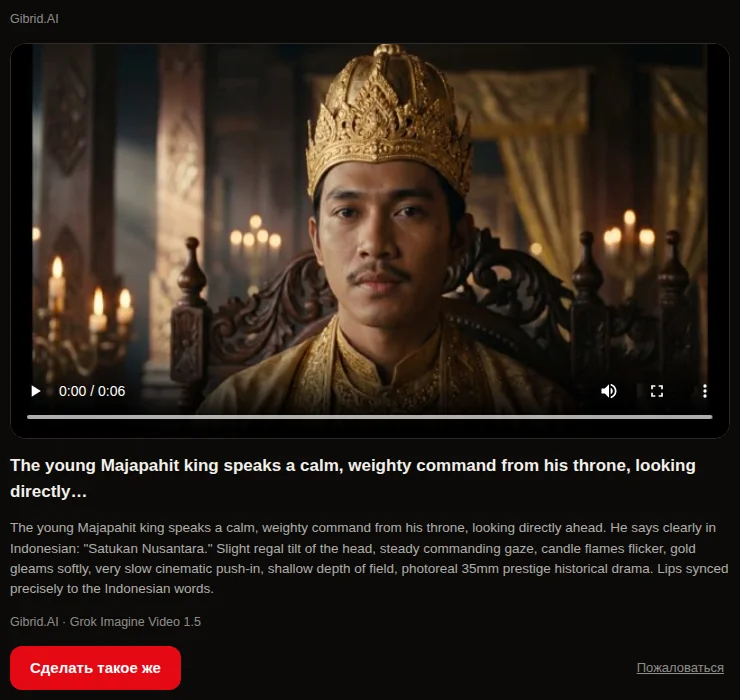
- The /w/code page shows the frame or clip, the prompt, the model, and the buttons “Make one like this” and “Report”. Your name, email and your other works are not shown.
- The link has a preview for messengers; the page is closed to search engines (noindex).
- The “Hide link” button turns the page off at once; three reports from different people also hide a link.
- A work with a persona's face is published only with a recorded consent to the face (and an 18+ confirmation).
1How to publish a link
- Open a finished work
In “My generations” click an image or clip tile — the viewer with the actions menu opens.
- Choose “Share a link”
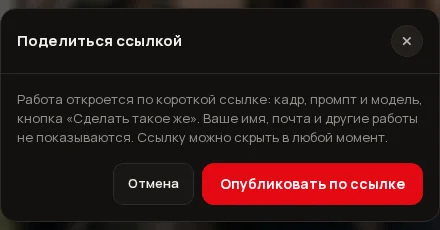
The item exists for both images and clips. A window opens with the explanation: “The work opens via a short link: the media, prompt and model, plus a “Make one like this” button. Your name, email and other works are not shown. You can hide the link at any time.”
- Press “Publish via link”
Only now is the page created. You see “Link ready”, and the window shows a field with a link like gibrid.ai/w/… .
- Copy and send it
The Copy button puts the link on the clipboard (“Link copied”), Open shows the page as others will see it.
You can share only your own finished work from the feed. A file you uploaded or someone else's work will not do: the server answers that you can share only your own finished work. If you already published this work and did not hide the link, the window shows the earlier link at once instead of creating a new one.
2What people with the link see
The /w/code page opens without signing in to Gibrid. On it:
- the work itself: a clip with a player and looping, or an image;
- a title (the first words of the description, up to 90 characters) and the full prompt text in a scrollable block;
- a line “Gibrid.AI · model name”, for example “Kling V3 Omni”;
- a Make one like this button — it leads into Studio and puts the prompt and model into the composer;
- a Report button.
The page language follows the browser: Russian or English (no other languages). The page is closed to search-engine indexing, and the messenger preview is built from meta tags: a title, the start of the prompt, the frame, and for a clip the clip itself. How exactly a given messenger shows the preview depends on the messenger.
3“Make one like this”
A click leads into Studio at /provideo/?remix=code. The prompt and model go into the composer (for an image — into image mode) and a message appears: “Prompt and model filled in — press “Generate”, the price is on the button”. Nothing is sent by itself: the decision and the payment stay with the person. There is no bonus for the visit — neither for the person who clicked nor for the author. To run a generation you need to sign in to Gibrid.
In the link window the author sees “Views: N · “Make one like this”: M”. A view is counted on each opening of the page, and “Make one like this” on each such click-through.
4Hide the link and reports
- Open the same window
Work viewer → Share a link. If a link exists you see the link field and the buttons.
- Press “Hide link”
“The link is hidden — nothing opens from it anymore” appears. The page at once shows “This link is no longer active. The author hid this work or the link was removed”.
- Publish again if you wish
After hiding, the button is again “Publish via link”; a new publication gets a new address, the old one does not come back.
Reports. Anyone without signing in can press Report on the page. The browser asks “What is wrong with this work? (optional)”: you can write the reason in your own words (up to 300 characters) — the text is saved and goes to the administrator in the notification. There is no list of reasons to pick from; an empty field also sends the report, while “Cancel” in the prompt does not. One report per address per link is counted; when three from different people have come in, the link is hidden automatically until it is reviewed. Afterwards the page answers “Thank you, the report was sent”.
5A work with a persona's face
If your persona (a face) was used in the work, before publishing the server checks whether your consent to the use of a face is recorded. If not, a tick box appears in the window with the text “The work contains a persona's face. Confirm that you are 18 or older and that the photo shows you, or that you have this person's consent”. The “Publish via link” button becomes active after the tick; the consent is recorded in your account (the same as in other windows with a face).
?FAQ
Does anything get published by itself, without my click?
No. The page is created only after “Publish via link”. Until you press it the work has no public address.
Are my name or email visible on the page?
No. The page has only the work, its description, the model name and the buttons. Neither your name, nor avatar, nor email, nor your other works are shown.
Can I share an image, not only a clip?
Yes, the “Share a link” item exists for both. For an image the page has the frame, for a clip a player.
How much does publishing a link cost?
It is free. No tokens are spent; there is no limit on the number of links.
What if my work was reported?
If reports came from three different people, the link hid itself and the administrator got a notification. You can publish the work again, but make sure the description has nothing extra.
Why does the person who opened the link have no run button?
The page has only “Make one like this” and “Report”. The run happens in Studio: the prompt and model are filled in, and you must press “Generate” and pay yourself (signing in is required).
Related
My generations, Favorites and Library
Everything you create in Studio is collected in one place. Here you can find an old work, mark a favorite…
Read more →Finishing a clip: format, brand bar, editing and zip — free
The clip is ready, but you need a vertical version for Reels, a bar with your phone number, or a cut of…
Read more →Small things that save time and money
Not big features but Studio's small habits: say a prompt by voice, see the exact price before you click, get…
Read more →Templates in Studio: a video from a ready recipe
A template is an already configured scene: the model, description, format and duration are chosen for you.…
Read more →Links: sharing a chat or a soul safely
You can show a good conversation to others by link: the person opens a read-only page and sees a snapshot of…
Read more →