 GIBRID.AISchool
Chains: one photo, several finished shots at once
A chain is a ready-made sequence of steps. You upload one photo and press one button, and Studio makes the whole series itself: five ad scenes for a product, or four photoshoot frames for a portrait and a clip from the best one. The price of the whole chain is shown before you start.
- The Chains button sits above the feed of your works and appears after your first finished work. Inside are two scenarios: “Product → 5 creatives” (10 tokens) and “Portrait → photoshoot → video” (16 tokens).
- Upload one photo and press Run the chain: the steps go one by one, and the price of the whole chain is written before you start.
- Stop does not start the remaining steps — they are not charged. A step with an error is not charged either, and the chain keeps going. If you close the window while it runs, Studio asks “Stop the chain?”: by default the chain continues in the background, and a strip such as “Product → 5 creatives · step 2 of 5” with “Open” and “Stop” buttons stays above the feed.
- The frames land in your feed by themselves. In the portrait chain the clip is started with a separate Animate the chosen one button.
1Where to find the chains
The buttons above the “My generations” feed are Select, Chains and Ad from link. You see them on both the pictures tab and the video tab.

2The “Product → 5 creatives” chain
One product photo becomes 5 ad shots in different scenes. For every shot Studio adds a request to the model by itself: do not change the product — shape, colours, label, logo and text must stay the same. The shots are made by the Nano Banana 2.1 model.
- Open the window
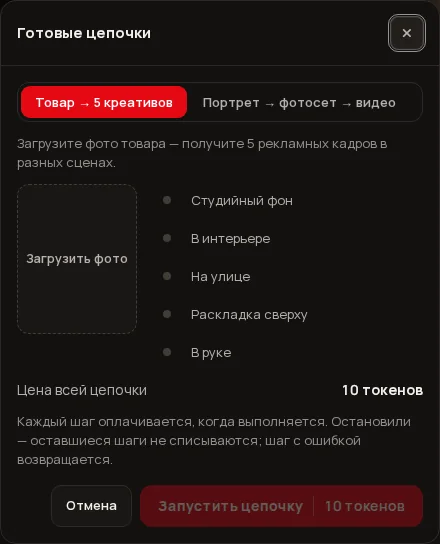
Press Chains above the feed. The “Ready-made chains” window opens; the Product → 5 creatives tab is selected first.
- Upload the product photo
Press Upload photo and choose a picture of the product. You can replace it with the same button before you start.
- Check the price
The “Price of the whole chain” line shows the number of tokens — currently 10. The start button shows the same number.
- Press “Run the chain”
The steps go in turn. Next to each one it first says “waiting”, then “running…”, then “done”.
The five scenes:
- Studio backdrop — a clean plain background and soft professional light.
- In an interior — a cosy modern home interior, a wooden table, warm window light.
- Outdoors — the product outside at golden hour with a softly blurred natural background.
- Flat lay — a top-down view with the product among fitting small props on a pastel surface.
- In hand — a close-up of a hand holding the product.
3The “Portrait → photoshoot → video” chain
One portrait becomes 4 photoshoot frames — in a studio, in a city, in nature and in the evening. The model is told to keep the same person: face, age, hairstyle. Then you can make a short clip from the best frame.
- Open the tab
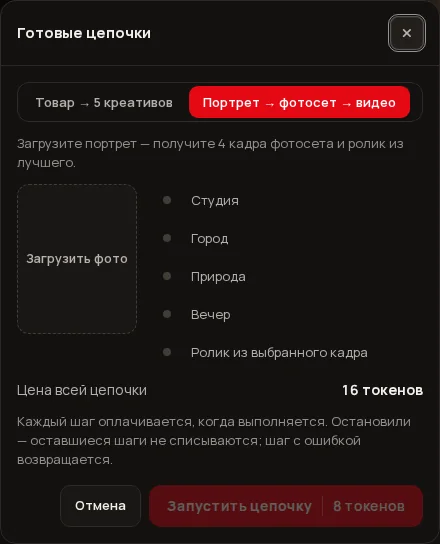
In the “Ready-made chains” window press Portrait → photoshoot → video.
- Upload the portrait
Press Upload photo. The scene list shows “Studio”, “City”, “Nature”, “Evening” and, last, “Clip from the chosen frame”.
- Check the price
“Price of the whole chain” is currently 16 tokens: 4 frames at 2 and a clip for 8. The start button shows only the price of the frames, that is 8, because you start the clip separately.
- Press “Run the chain”
The 4 frames are made first, one by one.
- Choose a frame and press “Animate the chosen one”
When the frames are ready, click the best one — it gets an outline — and press Animate the chosen one. A 6-second (720p) clip starts the same way as in “Animate a photo” and appears in your feed.
4How it runs
- One by one. The steps run strictly in sequence. Each has its own status: “waiting”, “running…”, “done”, “failed — refunded” or “not run”.
- Paid per step. Each step is charged when it runs. A step that was never reached charges nothing.
- “Stop”. The button replaces “Cancel” while the chain is running. A step that is already running finishes and is charged, and the remaining ones get “not run” and are not charged. You will see “Chain stopped — steps that didn’t run weren’t charged”.
- An error in a step. The step shows “failed — refunded”, and the chain goes on to the next one.
- Closing the window. The cross, Esc and a click outside, while the chain is running, do not close the window at once but ask “Stop the chain?” with two buttons: Stop (the current step finishes, the rest are not charged) and Continue in the background (selected by default: frames will keep appearing in your feed).
- The strip in the feed. While the chain runs in the background, a strip such as “Product → 5 creatives · step 2 of 5” stands above the feed with the buttons Open (back to the window) and Stop. After you press it the button says “Stopping…”. When everything is finished, the strip says “done, N of M frames” or “stopped, N frames done” and offers Open and Close. While the chain window is open, the strip is hidden. Only one chain runs at a time: until it is finished you cannot start another.
- Frames in the feed. Each finished frame appears in the feed at once, without waiting for the end of the chain.
When everything is finished you get the message “The frames are ready — they’re already in your feed”. You can look at the finished frames right in the window and find them in the pictures feed. The Close button closes the window.
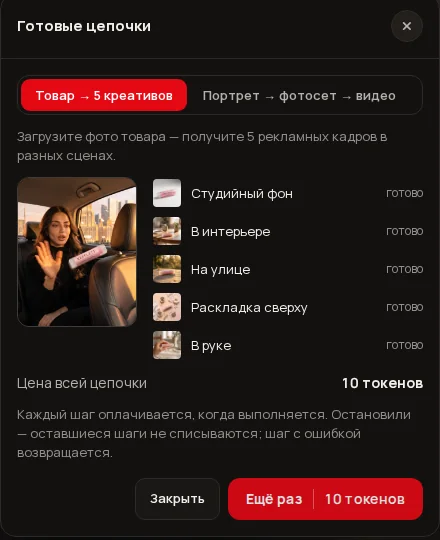
After either chain finishes, Try again appears instead of “Run the chain” — it starts everything over with the same photo. For “Product → 5 creatives” the button shows the price of the whole chain (10 tokens), for the portrait chain only the photoshoot (8 tokens): the clip is still started with the separate Animate the chosen one button.
5How much it costs
| Chain | What is inside | Price |
|---|---|---|
| Product → 5 creatives | 5 frames at 2 tokens | 10 tokens |
| Portrait → photoshoot → video | 4 frames at 2 tokens, then a 6-second clip for 8 tokens (with a separate button) | 16 tokens (frames 8, clip 8) |
| You stopped the chain | only the steps that ran are charged | less |
| A step with an error | not charged | 0 for that step |
6What is not here
- You cannot change the scenes or type your own text: the set of steps is built into the chain. For your own scenes make pictures the usual way in Studio.
- There are only two chains; there are no other scenarios yet.
- In the portrait chain there is one clip, and only from the chosen frame; the chain cannot put everything together into one finished video.
- Only one chain runs at a time (including the one from “Ad from link”): until it is finished you cannot start a second.
- If three generations are already running, the portrait chain’s clip will not start until one finishes: you can have at most 3 at a time.
?FAQ
Why don’t I see the “Chains” button?
It appears after your first finished work and sits above the “My generations” feed. Make your first picture or clip and the button appears by itself.
How much does a chain cost, and when is the money taken?
The price of the whole chain is written in the window before you start: 10 tokens for “Product → 5 creatives” and 16 for “Portrait → photoshoot → video” (frames 8 and clip 8). Each step is charged when it runs.
What happens if I press “Stop”?
The step that is already running finishes and is charged. The rest do not start and charge nothing. Frames that are already done stay in your feed.
What if one of the steps fails?
It shows “failed — refunded”, the money for it comes back, and the chain continues from the next step.
Can I run a chain again?
Yes. After it finishes, both chains get a “Try again” button with the same photo. On the portrait chain it shows the price of the photoshoot only; the clip is started separately.
Where do I find the frames afterwards?
In the “My generations” feed, on the pictures tab. The portrait chain’s clip appears in the video feed.
What happens if I close the window while the chain is running?
Studio asks “Stop the chain?”. “Continue in the background” (selected by default) leaves the chain running: frames appear in your feed and a strip with “Stop” stands above the feed. “Stop” does not start the remaining steps, and they are not charged; a step that is already running finishes.
Related
Animate a photo: from a picture to a clip in one step
Want a still photo to breathe, move its hair, or be circled by a camera, without learning about models and…
Read more →Ad from a link: from a product page to five shots
A small business does not always have material for ads. If your product has a page in an online shop, Studio…
Read more →Compare video models and pick the best one for your goal
Studio has dozens of video models and it is hard to know which suits your scene. The compare button runs the…
Read more →Quick image edits: pick an option, press “Apply”
No need to paint an area with a brush and write a description. The image edit screen has a “Quick edits”…
Read more →Templates in Studio: a video from a ready recipe
A template is an already configured scene: the model, description, format and duration are chosen for you.…
Read more →